Analog vs. Digital Controller Triggers: How to Test Travel, Trigger Stops & Range
Learn how analog and digital triggers report pressure in your browser, how to test resting zero-point and full saturation, and how trigger stops affect travel.
On This Page (10 Sections)
Analog vs. Digital Controller Triggers: How They Differ
Rear shoulder triggers fall into two functional categories depending on how they convert physical finger travel into an input signal:
- Analog Triggers (LT/RT and L2/R2): Standard on Xbox Wireless and Series X|S controllers, PlayStation 5 DualSense, PlayStation 4 DualShock 4, and most XInput PC gamepads. An analog trigger measures continuous pull depth across its physical stroke—using a Hall Effect magnetic sensor or a rotary potentiometer—and reports a proportional floating-point value from 0.000 (completely released) to 1.000 (fully depressed).
- Digital Triggers (Switch ZL/ZR and Microswitch Stops): Standard on the Nintendo Switch Pro Controller and Joy-Con, arcade fightpads, and pro controllers set to a physical microswitch "click" mode. A digital trigger acts as a binary on/off switch: it reports 0.000 while released and jumps directly to 1.000 the instant the internal switch actuates, with no intermediate values.
Why the Difference Matters Across Game Genres:
How games interpret that signal depends on the genre and the specific title's input logic:
- Racing & Flight Simulators: Throttle, braking, and rudder controls typically read continuous 0.000 to 1.000 values so you can modulate partial gas or trail-brake smoothly through corners. With a binary digital trigger, pulling the trigger applies 100% throttle or 100% braking immediately.
- Shooters & Action Games: Many action titles fire as soon as trigger output crosses an activation threshold, where shorter travel or digital switches can feel snappier. However, trigger thresholds and full-pull mechanics are game-dependent: in a hypothetical example, one game might fire a weapon as soon as output passes 0.100, while another title or vehicle mode might check for a value near 1.000 before engaging a secondary action, boost, or full charge.
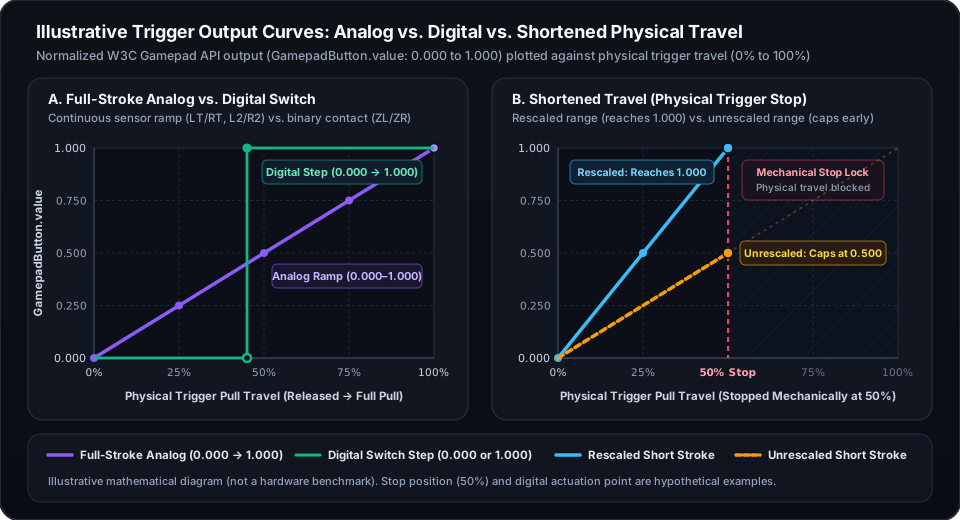
- Open the Controller Trigger Test and pull each trigger slowly to see whether your hardware reports a continuous 0.000–1.000 ramp or a binary 0.000 / 1.000 step.
How the Browser Reads Triggers: GamepadButton.value, pressed & touched
When you test a controller in a web browser, the page does not read raw sensor voltage or direct spring force. Instead, it polls normalized objects inside the navigator.getGamepads() array under the W3C Gamepad API specification. Every entry in the Gamepad.buttons array exposes three properties:
- 1
GamepadButton.value(Normalized Float from 0.0 to 1.0):- Represents current pull depth as a double-precision float clamped between 0.0 and 1.0.
- On an analog trigger,
GamepadButton.valueincreases smoothly from 0.000 at rest through intermediate values (such as 0.250, 0.500, and 0.750) up to 1.000 at full pull. - On a digital trigger,
GamepadButton.valuereports only 0.0 when released and 1.0 when actuated.
- 2
GamepadButton.pressed(Boolean true or false):- Indicates whether the button is currently considered active.
- For digital buttons, pressed becomes true as soon as the physical switch closes.
- For analog triggers, the W3C Gamepad API specification notes that when hardware does not provide a separate digital switch alongside the analog sensor, the browser sets
GamepadButton.pressed = trueonceGamepadButton.valueexceeds a browser-defined activation threshold (press threshold).
- 3
GamepadButton.touched(Boolean true or false — Limited Availability):- According to the W3C Gamepad API specification,
GamepadButton.touchedfollows a three-tier rule: (a) if the button hardware can detect physical finger contact (capacitive touch) and the OS/browser pipeline exposes it, touched reflects physical touch; (b) otherwise, if the control reports an analog value, touched defaults to true wheneverGamepadButton.value > 0; (c) if the control can neither detect touch nor report an analog value, touched simply mirrorsGamepadButton.pressed. - Browser Support Qualification: MDN Web Docs labels
GamepadButton.touchedas "Limited availability" across browsers. Even when supported by the browser, most controller triggers do not expose independent capacitive touch data through standard OS gamepad drivers, so touched typically turns true only whenGamepadButton.valuemoves above 0 or pressed becomes true.
How Our Trigger Diagnostic UI Displays These Properties:
- Continuous Value Readouts: The Controller Trigger Test displays
GamepadButton.valueas a three-decimal float (0.000 to 1.000), a rounded percentage (0% to 100%), and a vertical fill gauge. - ACTIVE Badge: The violet ACTIVE badge reflects
GamepadButton.pressed === true. - 100% PULL Badge: The green 100% PULL indicator is a JoystickTester.com UI convenience badge that lights up when
GamepadButton.value ≥ 0.980(98.0%). It is not a native W3C Gamepad API property, and our Trigger Test UI does not display a separate badge forGamepadButton.touched.
- Remember that the green 100% PULL badge on our page triggers at
value ≥ 0.980—always check the numeric float readout if you want to verify whether your trigger reaches a full 1.000.
Standard Mapping (buttons[6] / buttons[7]) vs. Non-Standard Gamepad Mapping
How a browser locates your left and right triggers depends on the controller's Gamepad.mapping property:
- 1W3C Standard Mapping (
mapping: "standard"):When you connect a recognized Xbox, PlayStation, or Nintendo Switch controller over standard OS drivers, the browser sets
Gamepad.mapping = "standard"and maps the rear triggers to fixed button indices:In this mode, our Controller Trigger Test automatically labels the two diagnostic cards for your detected controller family—including "ZL Trigger (Digital Switch)" and "ZR Trigger (Digital Switch)" with the subtitle "Button 6 • Binary 0/1" and "Button 7 • Binary 0/1" when a Nintendo Switch controller is detected.
buttons[6](B6): Left Trigger (LT on Xbox, L2 on PlayStation, ZL on Nintendo Switch).buttons[7](B7): Right Trigger (RT on Xbox, R2 on PlayStation, ZR on Nintendo Switch).
- 2Non-Standard Mapping (
mapping: ""):When a controller is not in the browser's built-in layout table—such as certain flight sticks, racing pedal sets, older USB adapters, or specialized controllers—the browser reports an empty string (
mapping: "").- What mapping: "" Actually Means: An empty mapping string simply means the browser has not applied the W3C "standard" canonical button and axis remapping. It does not mean the browser is exposing raw USB or Bluetooth HID byte packets directly; the page still receives normalized floating-point values in
Gamepad.axesandGamepad.buttonsfrom the operating system's input layer. Likewise, an unmapped device is not automatically a legacy DirectInput gamepad. - Why Trigger Indices Can Shift: When
mapping: ""is active, a controller's triggers might appear on different button indices or be routed into axis channels (such asaxes[2],axes[4], oraxes[5]) depending on the OS driver. - What Our Diagnostic Shows: On the Controller Trigger Test, unmapped controllers display an amber "Raw HID (Unmapped)" badge (a shorthand UI label for
mapping: "") and fall back to inspectingbuttons[6]andbuttons[7]. On Step 2 of our Controller Calibration Tool, the automatic B6/B7 trigger range bars display "Disabled in Raw HID Mode (mapping: "")" so an unmapped axis is not misread as a faulty trigger. To see which button or axis moves when you squeeze a trigger on an unmapped device, open the full Gamepad Tester dashboard.
- If your controller shows the amber "Raw HID (Unmapped)" notice on the Trigger Test, open the main Gamepad Tester to see which button index or axis channel responds when you pull each trigger.
Step-by-Step: How to Test Trigger Travel, Smoothness & Full Pull
Follow this four-step procedure on the Controller Trigger Test to inspect your left and right triggers:
- 1Connect and Wake Your Physical Controller:
Plug your controller in via USB or pair it over Bluetooth, click inside the page, and press any physical button so your controller appears in the slot bar. Confirm that the amber "Simulation Mode (No Physical Hardware)" banner is not active—Simulation Mode runs a synthetic mathematical demo wave rather than reading physical sensors.
- 2Step A — Hands-Off Resting Check (Zero-Point Baseline):
Place the controller on a flat surface with your fingers completely off both triggers.
- Expected Reading: Both cards should read 0.000 (0%), the vertical gauge bars should be empty, and the ACTIVE badge should remain off.
- Follow-Up Check: Pull both triggers fully and let them snap back on their own 3 to 5 times, confirming they return cleanly to 0.000 every time.
- 3Step B — Slow Progressive Sweep (Resolution & Linearity Check):
Squeeze Left Trigger (Button 6) from rest to its mechanical stop over 4 to 5 seconds, then release it just as slowly. Repeat for Right Trigger (Button 7).
- On an Analog Trigger (LT/RT, L2/R2): The numeric readout should climb smoothly through intermediate decimals (0.050, 0.150, 0.300, 0.500, 0.750...) without sudden value drops, dead spots, or erratic jumping when held steady at half-pull.
- On a Digital Trigger (Switch ZL/ZR): The readout will stay at 0.000 until the tactile switch actuates and then jump directly to 1.000.
- 4Step C — Full-Pull Saturation Check (Maximum Reach):
Pull each trigger comfortably against its rear stop without forcing the plastic housing.
- Expected Reading: The numeric display should reach 1.000 (100%), lighting up both the violet ACTIVE badge and the green 100% PULL badge (
value ≥ 0.980).
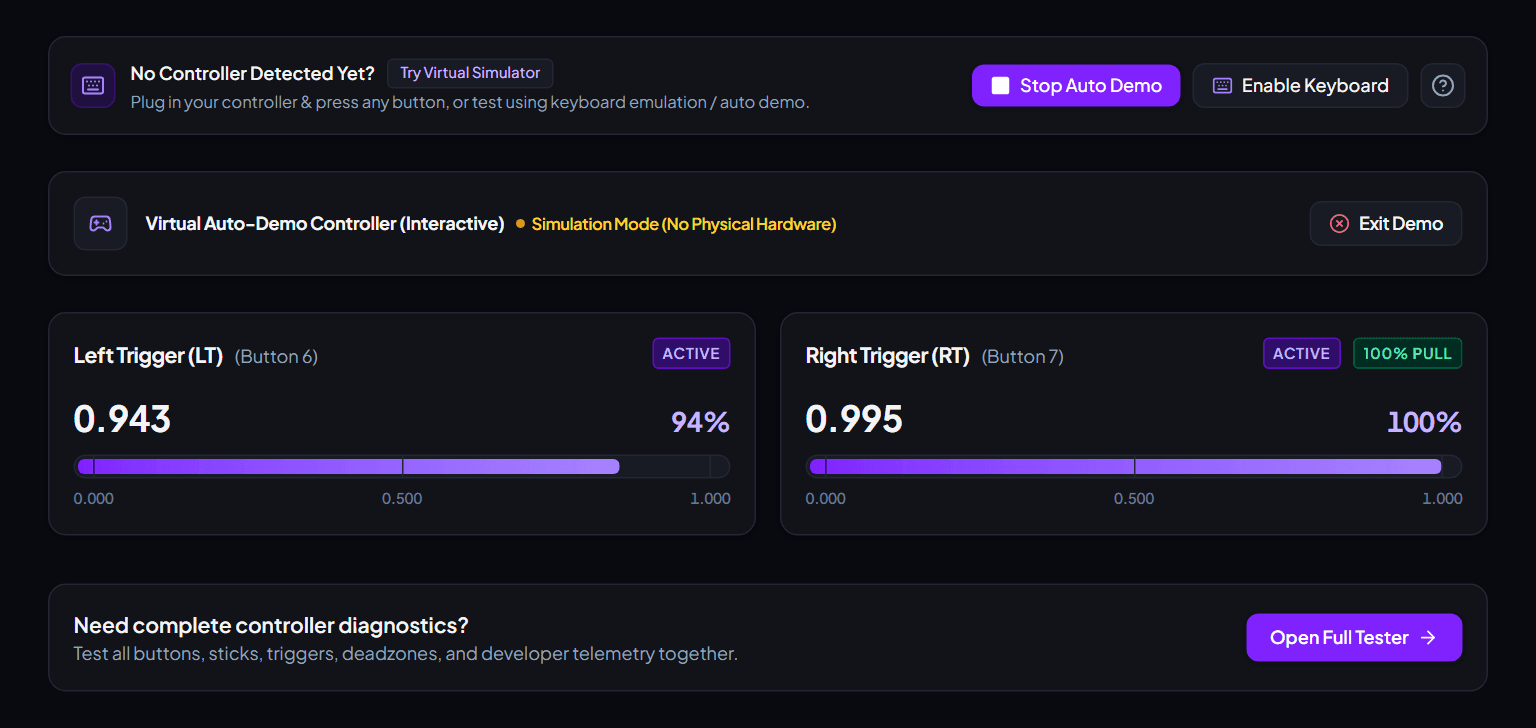
- Perform the slow 4–5 second squeeze test on one trigger at a time so you can easily spot any mid-travel value drops or hesitation on the vertical gauge.
How to Interpret Incomplete Pull, Early Saturation & Non-Zero Resting Values
When you test a trigger in the browser, you are observing the normalized output stream after hardware sensors, onboard firmware, and OS drivers have processed the signal. Here is how to interpret the four common response patterns and what to check next:
- 1Normal Full-Range Output (0.000 at Rest to 1.000 at Full Pull):
The trigger rests at 0.000 while untouched, rises smoothly as you pull, and reaches 1.000 (lighting the 100% PULL badge at
value ≥ 0.980) right as the lever reaches its mechanical stop. - 2Incomplete Saturation (Capping Below 1.000 at Full Pull):
You pull the trigger all the way to its physical stop, but the browser readout stops short—for example, capping at an illustrative 0.780 (78%)—and never reaches 1.000.
- Possible Explanations to Check: An engaged physical trigger-stop slider whose firmware or profile has not rescaled the shortened stroke; a custom outer limit or max-output cap in companion software (Xbox Accessories, PlayStation Accessories, Steam Input, or vendor utilities); shifted firmware or driver calibration endpoints; or a physical obstruction limiting lever travel.
- Practical Impact: Games that only check a low activation threshold may still fire normally, whereas games that require a near-1.000 value for full vehicle throttle or secondary charge actions may not reach maximum output.
- 3Early Saturation (Reaching 1.000 Well Before the Physical Stop):
The readout hits 1.000 partway through your pull (for example, at an illustrative 65% of physical travel), leaving the rest of the pull as an unresponsive outer plateau at 1.000.
- Possible Explanations to Check: A shortened outer deadzone or "hair-trigger" curve configured in controller companion software or Steam Input; stored calibration bounds scaled for a shorter stroke; or sensor/magnet alignment tolerances.
- 4Non-Zero Resting Value (Reporting > 0.000 While Untouched):
With your fingers off the controller, the trigger reports a steady or flickering positive number (such as an illustrative 0.040 or 0.120) and may hold the ACTIVE badge on.
- Possible Explanations to Check: Zero-point calibration offset after firmware updates or component wear; a zero inner deadzone in software; or mechanical return friction/binding preventing the lever from returning to its home stop.
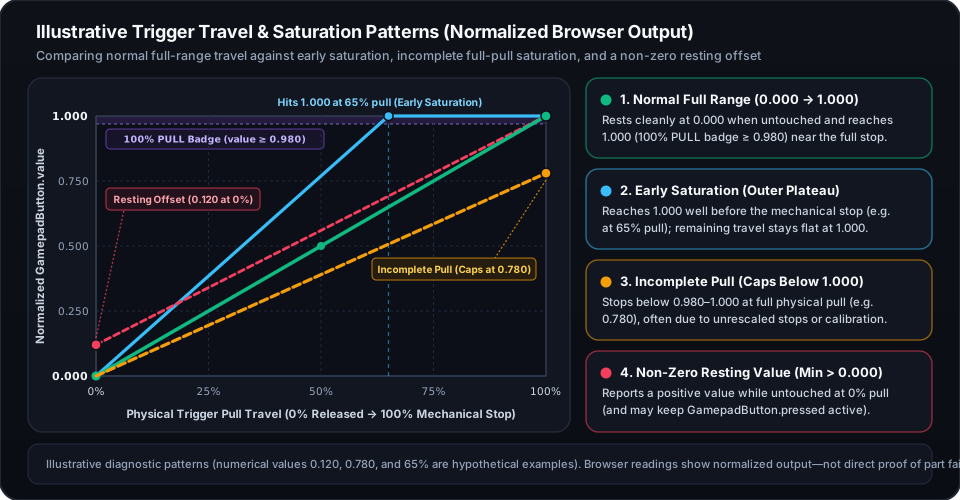
- Browser readings show what normalized values reach the page, not which physical part caused them—always check physical trigger-stop switches and software profiles before assuming a sensor fault.
How Physical Trigger Stops & Hair-Trigger Locks Affect Browser Output
Many pro and customizable controllers include mechanical switches on the back shell that shorten how far the trigger can physically move. Because the physical lever hits a stop early, the normalized 0.000–1.000 browser reading depends on whether the controller resizes its calibration window to match the shorter stroke:
- 1Xbox Elite Wireless Controller Series 2:
- According to Microsoft's official Xbox Elite Series 2 documentation, the adjustable 3-position hair-trigger locks are recognized automatically by the controller so shortened travel is scaled across the selected lock position.
- Important Qualification: Automatic lock recognition does not guarantee that every unit will report an exact 1.000 in every firmware revision, custom Xbox Accessories trigger deadzone profile, or connection mode. If an Elite Series 2 caps below 1.000 or behaves inconsistently after flipping the lock switches, check your active profile's trigger deadzone sliders and run the guided trigger recalibration tool in the Xbox Accessories app (introduced in Microsoft's November 2024 Xbox update for supported Xbox Wireless and Elite Series 2 controllers).
- 2PlayStation 5 DualSense Edge Wireless Controller:
- The DualSense Edge includes 3-position L2/R2 stop sliders on the back of the handles and supports custom trigger deadzone range adjustments (0–100) saved to onboard profiles via a PS5 console or Sony's official PlayStation Accessories app on Windows PC. After changing slider positions or profile ranges, test L2 and R2 on the Controller Trigger Test to confirm both triggers reach 1.000 at the stop.
- 3Third-Party Pro Controllers & Dual-Mode (Analog / Microswitch) Triggers:
- Controllers with a physical switch that swaps between full-travel Hall Effect analog mode and a short-click microswitch mode change their output behavior completely: in analog mode they report a smooth 0.000–1.000 ramp, while in microswitch mode they behave like a digital switch (jumping straight from 0.000 to 1.000).
- 4Aftermarket Trigger-Stop Shells & DIY Back-Housing Mods:
- Adding an aftermarket plastic stop shell to a standard Xbox Wireless, DualSense, or DualShock 4 controller blocks the trigger lever mechanically without telling the controller's firmware that the stroke was shortened. As a result, the browser readout will typically cap at an intermediate value (such as 0.450–0.650) unless you rescale the outer trigger range in software or calibrate the shortened travel.
- Whenever you flip a physical trigger-stop switch on your controller, pull the trigger on our Controller Trigger Test to verify whether the shortened stroke still reaches 1.000.
Analog vs. Digital Behavior Across Xbox, PlayStation, Switch & PC Controllers
Use this quick reference to compare what standard controllers report in a browser when using W3C "standard" mapping:
- Xbox Wireless (Model 1708), Xbox Series X|S (Model 1914) & Elite Series 2: LT (
buttons[6]) and RT (buttons[7]) use Hall Effect magnetic analog sensors, reporting a continuous 0.000 to 1.000 float ramp. - PlayStation 5 DualSense & DualSense Edge: L2 (
buttons[6]) and R2 (buttons[7]) report a continuous 0.000 to 1.000 analog ramp. (Note: DualSense adaptive trigger motor resistance is controlled by game output APIs; the W3C Gamepad API reads your normalized pull position from 0.000 to 1.000.) - PlayStation 4 DualShock 4: L2 (
buttons[6]) and R2 (buttons[7]) report a continuous 0.000 to 1.000 analog ramp. - Nintendo Switch Pro Controller & Joy-Con: ZL (
buttons[6]) and ZR (buttons[7]) are physical digital switches. They report only 0.000 when released and 1.000 when pressed, with no intermediate values. - Generic PC Gamepads, Racing Pedals & Flight Peripherals: XInput-compatible gamepads expose continuous analog LT/RT values on
buttons[6]andbuttons[7]. Specialized peripherals that enumerate withmapping: ""may route triggers or pedals to other button or axis channels.
Troubleshooting Common Trigger Observations in the Browser
If your readings on the Controller Trigger Test look unusual, match what you see on screen to these practical checks:
- 1Observation: Trigger Caps Below 1.000 at Full Pull (Incomplete Saturation):
- Check physical trigger-stop sliders on the back of the controller; switch them to full travel and re-test.
- Check companion apps (Xbox Accessories, PlayStation Accessories, vendor utilities) or Steam Input for custom outer deadzone caps.
- If you installed an aftermarket trigger-stop shell, remember that mechanical stops block travel unless you rescale the outer range in software or firmware.
- 2Observation: Trigger Stays Above 0.000 When Released (Non-Zero Resting Value):
- Gently lift the trigger cap outward by a millimeter to see whether the readout drops to 0.000 (which points to a slight mechanical return offset or resting zero-point shift).
- Run firmware trigger recalibration if supported by your controller, or raise the trigger inner deadzone slightly above the resting value in Steam Input or your game's settings.
- 3Observation: Values Jump Erratically or Drop Out Mid-Squeeze:
- Test with a different USB data cable or a direct motherboard USB port to rule out wireless packet loss or unpowered USB hub dropouts.
- Close background remappers (such as DS4Windows, reWASD, or overlapping Steam Input desktop configs) that might be competing with native browser polling.
- If the mid-travel dropouts persist across another device or cable, the internal sensor or wiring harness may require service.
- 4Observation: Analog Trigger Jumps Straight from 0.000 to 1.000 Like a Switch:
- Check whether your controller has a physical hair-trigger microswitch toggle engaged.
- Check whether a software remapper or accessibility profile has bound the trigger to a binary button or keyboard key.
- Check whether the browser reports Non-Standard Mapping (mapping: ""), where an OS driver may expose only a digital button state on
buttons[6]andbuttons[7]while placing analog travel on an axis channel.
When to Use the Controller Calibration Tool & External Calibration Utilities
After inspecting live trigger behavior on the Controller Trigger Test, you can record exact session min/max spans on Step 2 of our Controller Calibration Tool:
- How Step 2 Records Trigger Range: Under "Trigger Range Check (0.000 Released → 1.000 Full Squeeze)", squeezing and releasing both triggers records your exact minimum and maximum values—displayed as LT (B6): Min 0.000 / Max 1.000 and RT (B7): Min 0.000 / Max 1.000 (when
mapping: "standard"is active).
Choosing an External Calibration Utility (Read-Only Browser Sandbox):
Because web browsers cannot write calibration data to controller firmware or OS drivers, persistent trigger adjustments must be applied using an external tool that supports your specific controller and operating system:
- Microsoft Xbox Accessories App (Windows 10/11 & Xbox Consoles): In November 2024, Microsoft introduced guided trigger self-calibration inside the Xbox Accessories app alongside thumbstick recalibration for supported Xbox Wireless Controllers and Xbox Elite Wireless Controller Series 2 units. Support depends on your specific controller model, firmware version, and app availability—open Xbox Accessories > More Options (•••) > Recalibration options to check whether trigger recalibration is available for your device.
- Sony PlayStation Accessories App (Windows PC) & PS5 Settings: Supports firmware updates for DualSense controllers and onboard L2/R2 deadzone range profiles for the DualSense Edge controller (it does not provide a raw zero-point trigger sensor calibration wizard for standard DualSense controllers).
- Windows Game Controllers Control Panel (
joy.cpl): Depending on your controller type and Windows driver architecture,joy.cpl> Properties > Settings > Calibrate can rescale axis endpoints in the local Windows DirectInput registry. Note that calibration options injoy.cplvary by driver—Xbox XInput controllers, PlayStation controllers, and generic DirectInput gamepads do not all expose identical trigger axis steps, and games using raw XInput or Windows.Gaming.Input may bypassjoy.cplregistry tables. - Steam Input & In-Game Trigger Deadzones (Windows, macOS & Linux): For Steam games—or on macOS, where System Settings > Game Controllers does not include a raw trigger range calibration wizard—use Steam > Settings > Controller > Calibration & Advanced Settings or in-game trigger deadzone sliders to trim a non-zero resting offset or rescale an incomplete outer pull.
- Run Step 2 of our Controller Calibration Tool before and after adjusting firmware or software trigger deadzones to confirm your LT (B6) and RT (B7) Min/Max span.
Browser trigger diagnostics read normalized GamepadButton.value (0.0 to 1.0) and GamepadButton.pressed properties from navigator.getGamepads(), while physical trigger-stop scaling and persistent calibration are managed by controller firmware and companion utilities.
Defines GamepadButton.value, pressed, touched, and canonical B6/B7 trigger remapping.
Documents normalized 0.0 to 1.0 floating-point values for analog triggers and binary buttons.
Documents boolean activation state and press thresholds for analog triggers.
Documents touch detection and fallback behavior (value > 0 or pressed) across browsers.
Official Microsoft overview of Elite Series 2 3-position hair-trigger locks and automatic recognition.
Documents guided trigger self-calibration in Xbox Accessories for supported Xbox Wireless and Elite Series 2 controllers.
Official guide for DualSense Edge L2/R2 stop sliders and 0–100 trigger deadzone input ranges.
Test Your Controller Triggers Live
Measure continuous 0.000 to 1.000 trigger travel, verify zero-point release, and test full-pull saturation on Button 6 and Button 7.
Related Diagnostic Tools
Related Articles & Manuals
Frequently Asked Questions
Why does my analog trigger stop at 70% or 80% on the Trigger Test?
When an analog trigger caps below 1.000 (100%) at its physical stop, the browser is receiving an unrescaled or limited maximum value. Common explanations include an engaged physical trigger-stop slider whose shortened travel has not been rescaled in firmware or software, an aftermarket trigger-stop shell blocking the lever early, a custom maximum output limit in companion software, or shifted calibration endpoints.
Why do Nintendo Switch Pro Controller ZL and ZR triggers only show 0% and 100%?
The ZL and ZR triggers on official Nintendo Switch Pro Controllers and Joy-Con controllers are physical digital switches rather than continuous analog sensors. Under the W3C Gamepad API, they report 0.000 when released and jump straight to 1.000 when pressed. This is normal hardware behavior for Switch controllers, not a defect.
What is the difference between the ACTIVE badge and the 100% PULL badge on the Trigger Test?
The violet ACTIVE badge reflects the native W3C GamepadButton.pressed boolean property, which turns true as soon as your pull crosses the browser or driver activation threshold. The green 100% PULL badge is a JoystickTester.com diagnostic indicator that lights up when GamepadButton.value reaches or exceeds 0.980 (98.0%), helping you confirm near-full saturation.
Does GamepadButton.touched show when my finger rests lightly on a trigger without pulling it?
Usually no. MDN labels GamepadButton.touched as "Limited availability," and most controller triggers do not report independent capacitive touch data over standard OS gamepad drivers. Under the W3C Gamepad API fallback rules, touched simply turns true when an analog trigger reports value > 0 or when a digital button reports pressed = true.
Can I calibrate my controller triggers directly inside the web browser?
No. Web browsers run inside a read-only security sandbox and only read the normalized values provided by your operating system and controller firmware. You can measure your exact resting minimum and full-pull maximum on our Controller Trigger Test and Controller Calibration Tool, then apply persistent adjustments using the Xbox Accessories app (for supported Xbox Wireless and Elite Series 2 models), PlayStation Accessories (for DualSense Edge profiles), Windows joy.cpl (where supported by your driver), or Steam Input.