Bluetooth Controller Connection Problems: Pairing, Detection & Device Switching
Isolate OS Bluetooth pairing from browser Gamepad API wake-up rules, compare wired USB vs. wireless behavior, and master multi-device switching on PlayStation, Xbox, and Switch controllers.
On This Page (10 Sections)
How Bluetooth Controller Connections Reach Your Browser (And Quick Symptom Guide)
When a wireless controller fails to respond in a web browser, the breakdown rarely happens in only one place. A Bluetooth controller signal passes through four distinct layers before live button or thumbstick values appear on screen:
- Layer 1 — Controller Radio & Pairing Slot Memory: The controller's internal Bluetooth transceiver either broadcasts a discovery beacon for a new host or attempts to reconnect to a saved host MAC address stored in its onboard pairing slot.
- Layer 2 — Operating System Bluetooth Stack & HID Driver: Windows, macOS, iOS/iPadOS, or Android completes an encrypted Bluetooth handshake and loads a Human Interface Device (HID) or XInput/Game Controller driver. At this stage, it is critical to distinguish a saved pairing profile (the OS remembers the device from a previous session while the controller is currently off or asleep) from an active live connection (packets are actively flowing between the controller and the OS). Note that exact status labels vary across Windows 10/11, macOS, mobile OS versions, and third-party Bluetooth drivers.
- Layer 3 — Browser W3C Gamepad API Security Gate: Even while the operating system has an active live connection, modern browsers keep
navigator.getGamepads()empty until the user interacts with a connected controller while the page is visible, and only when the document's gamepadPermissions-Policyallows access. - Layer 4 — Application Slot Assignment & Mapping Normalization: Once unlocked, the browser assigns the device to a zero-based slot index (0–3) and either remaps its controls to the canonical W3C Standard Gamepad layout (
mapping: "standard", which defines 17 buttonsB0–B16and 4 stick axes 0–3) or exposes unmapped driver channels (mapping: "").
Quick Symptom-to-Layer Decision Flow:
Use your primary symptom to jump straight to the matching diagnostic step:
- Controller never appears in your OS Bluetooth discovery list, or immediately reconnects to a console across the room: The controller is waking in normal reconnect mode instead of discovery mode, or it is a non-Bluetooth Xbox One revision. See Section 3 and Section 4.
- OS Bluetooth menu lists the controller as a saved device, or shows an active connection, but the browser says "Waiting for controller": You are hitting a stale saved profile or the W3C Gamepad API user-gesture privacy gate. Follow Step 1 and Step 2 in Section 2.
- Browser detects the controller over USB cable, or buttons are scrambled only over Bluetooth: The wireless transport uses a different HID report descriptor than wired USB. Follow Step 3 and Step 4 in Section 2, plus Section 6.
- Controller works for a few minutes over Bluetooth, then stutters, lags, or drops out: Check battery voltage under rumble load, 2.4 GHz USB 3.0 interference, and adapter power-saving settings in Section 7.
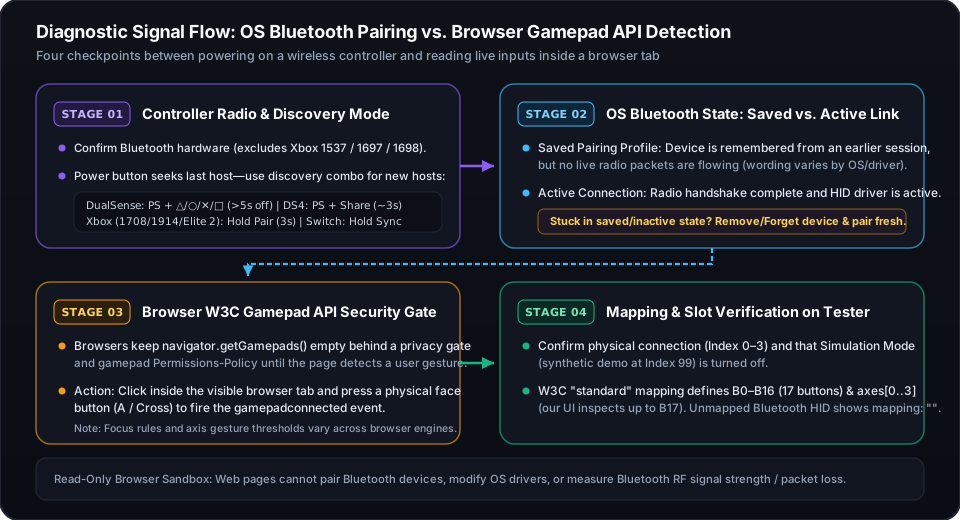
- Never assume a saved Bluetooth entry in your OS settings means the controller is actively transmitting—verify an active live connection first, then press a physical face button inside the focused browser tab.
4-Step Diagnostic Workflow: Isolating OS Pairing vs. Browser Detection
Rather than guessing whether your Bluetooth adapter, operating system, or browser is at fault, run this four-step isolation sequence using our Gamepad Tester and Multiple Controller Test:
- 1Step 1 — Confirm an Active OS Connection (Not Just a Saved Profile):
Open your operating system's Bluetooth settings and inspect the controller entry.
- Saved Profile vs. Live Link: Every major operating system distinguishes between a remembered device profile from an earlier session and an currently open radio link, although the exact wording ("Paired", "Connected", "Not Connected", or a battery badge) varies by OS version and Bluetooth stack.
- Quick OS Input Check: Before opening a browser, confirm that the OS itself is receiving input packets—for example, by opening the Properties > Test tab in Windows
joy.cplor checking Apple menu () > System Settings > Game Controllers on macOS.
- 2Step 2 — Satisfy the W3C Browser User-Gesture Gate:
Under the W3C Gamepad API specification, browsers withhold
gamepadconnectedevents and return null entries innavigator.getGamepads()until the user interacts with the controller while the page is visible, preventing background tabs from fingerprinting connected hardware.- Practical Activation Check: Bring the Gamepad Tester tab to the foreground, click once inside the page so the window holds active focus, and press a physical digital face button (such as A / Cross on B0 or B / Circle on B1).
- Why a Face Button Works Best: Focus behavior and analog-stick wake thresholds vary across Chrome, Edge, Firefox, and Safari—minor thumbstick movement often stays below a browser's gesture threshold, whereas a digital face-button press reliably triggers detection unless an embedded iframe or HTTP header blocks the gamepad
Permissions-Policy.
- 3Step 3 — Run a Differential Wired USB vs. Bluetooth Comparison:
If your controller still fails to respond or exhibits erratic inputs over Bluetooth, power it off and connect it to the same computer using a known data-capable USB cable.
- If Wired USB Works Normally: This differential result does not prove that every internal component is healthy under all operating conditions, but it strongly indicates that the browser and core switches/sensors can communicate over USB—pointing your investigation toward Bluetooth pairing state, wireless HID driver differences, or local 2.4 GHz radio interference.
- If the Exact Same Symptom Appears Over Both Wired USB and Bluetooth: Matching behavior across both transports does not automatically prove a physical hardware failure either; rather, differential diagnosis points to a factor shared by both pathways—such as controller firmware/calibration state, a system-wide software remapper or device hider (Steam Input, DS4Windows, HidHide), a charge-only USB cable that left the controller running on Bluetooth, or browser-level permissions.
- 4Step 4 — Check Slot Assignment (0–3) and Mapping Mode:
Once the controller wakes in the browser, verify which slot index it occupies on the Multiple Controller Test and check whether its mapping property reports standard or raw/non-standard on the Gamepad Tester. Virtual drivers, flight sticks, or previously connected gamepads can occupy Slot 0 while your Bluetooth controller sits on Slot 1 or Slot 2.
- Use wired USB vs. Bluetooth testing for differential diagnosis: differences isolate transport/driver issues, while identical symptoms point to shared software filters, calibration state, or hardware factors.
Entering True Discovery Mode vs. Waking a Controller
The single most common Bluetooth pairing mistake is pressing a controller's main power button (the PS, Xbox, or HOME button) and waiting for it to appear on a new computer or phone. Pressing the main power button only wakes the controller to search for its previously linked host. To make a controller visible to a new device, you must force its radio into Bluetooth discovery (pairing) mode:
- 1
- Make sure the controller is powered off (or if the player indicator LEDs are lit, press and hold the PS button until they turn off).
- Press and hold the Create button (top-left of the touchpad) first, then press and hold the PS button simultaneously for approximately 3 seconds until the lightbar flashes in rapid double-blue pulses.
- Select "DualSense Wireless Controller" (or "DualSense Edge Wireless Controller") in your host device's Bluetooth discovery list.
- 2
- With the controller completely powered off, press and hold the Share button and the PS button simultaneously for approximately 3 seconds until the rear lightbar strobes rapidly in white.
- Select "Wireless Controller" in your Bluetooth discovery menu.
- 3
- First, verify hardware compatibility: Xbox Series X|S controllers (Model 1914), Xbox Elite Wireless Controller Series 2 (Model 1797), Xbox Adaptive Controller, and Xbox One Bluetooth controllers (Model 1708, identifiable by a single continuous plastic faceplate surrounding the Xbox button) include built-in Bluetooth. Early Xbox One controllers (Models 1537, 1697, and original Elite 1698, where the Xbox button sits on a separate glossy plastic insert) do not contain a Bluetooth radio and require either a USB data cable or the 2.4 GHz Xbox Wireless Adapter.
- To pair a Bluetooth-capable Xbox controller to a new host: Turn on the controller by pressing the Xbox button, then press and hold the top Pair button (on the upper edge between LB and RB) for approximately 3 seconds until the Xbox button flashes rapidly.
- 4
- On the Switch Pro Controller, press and hold the small recessed Sync button on the top edge next to the USB-C port for 3 seconds until the bottom green player LEDs sweep back and forth.
- On a detached Joy-Con, press and hold the small round Sync button on the inner rail between the SR and SL buttons until the LEDs sweep.
- If a nearby console automatically powers on and grabs your controller while you try to pair it to a PC or phone, temporarily unplug the console from wall power until Bluetooth pairing is complete.
Switching Between Devices: DualSense Multi-Slot vs. Xbox Host Switching
Different controller ecosystems handle multi-device memory in fundamentally different ways. Understanding how your specific controller stores Bluetooth link keys prevents accidental console wake-ups and failed reconnections:
- 1Sony DualSense & DualSense Edge Multi-Device Pairing (Up to 4 Slots):
On supported PS5 DualSense and DualSense Edge firmware (introduced in Sony's 2025 multi-device pairing update), the controller can store up to four separate pairing profiles simultaneously across slots mapped to the four face buttons (Triangle, Circle, Cross, and Square):
- Checking Your Current Slot: Press the PS button to wake the controller—the player indicator LEDs beneath the touchpad blink in a pattern (1, 2, 3, or 4 lights) indicating which slot is currently active.
- Assigning or Pairing a Specific Slot (Hold ~5 Seconds): With no USB cable plugged in, press and hold the PS button together with one target action button—PS + Triangle (Slot 1), PS + Circle (Slot 2), PS + Cross (Slot 3), or PS + Square (Slot 4)—for approximately 5 seconds until the lightbar flashes twice consecutively in pairing mode, then complete pairing on that device.
- Switching Between Already-Paired Devices (Hold ~3 Seconds): When moving between devices already saved to those slots (for example, Slot 1 for your PS5 console, Slot 2 for your Windows PC, and Slot 3 for your Mac or iPad), turn on the target host's Bluetooth and press and hold PS + the assigned face button (Triangle, Circle, Cross, or Square) for approximately 3 seconds until the lightbar flashes and the player indicator shows the selected slot.
- 2Microsoft Xbox Wireless Controllers (3 Distinct Pair Button Actions):
Supported Bluetooth-capable Xbox controllers—including Xbox Series X|S (Model 1914), Xbox Elite Series 2 (Model 1797), Xbox One Bluetooth (Model 1708), and Xbox Adaptive Controller running the November 2021 Bluetooth Low Energy (BLE) firmware update or later—can remember one Xbox Wireless host (using Microsoft's proprietary 2.4 GHz protocol on an Xbox console or Xbox Wireless Adapter) and one most recent Bluetooth host (PC, Mac, iOS, or Android). Note that 2.4 GHz Xbox Wireless and standard Bluetooth are separate radio protocols, and the top Pair button performs three distinct actions depending on context:
- Action A — Enter Discovery Mode for a NEW Bluetooth Device: Turn on the controller, then press and hold the top Pair button for approximately 3 seconds until the Xbox logo flashes rapidly so a new PC, Mac, or phone can discover it.
- Action B — Quick Switch from Bluetooth to a Remembered Xbox Wireless Host: While connected to your Bluetooth device, double-tap the top Pair button. The controller disconnects from Bluetooth and reconnects to your previously linked Xbox console or Xbox Wireless Adapter.
- Action C — Return from Xbox Wireless to Your Remembered Bluetooth Host: While connected via Xbox Wireless, press and hold the top Pair button (until the Xbox logo flashes) to switch back to the single most recently paired Bluetooth device. (Because the controller remembers only one Bluetooth host at a time, switching between two different Bluetooth devices—such as a Windows laptop and an iPad—still requires re-pairing via Action A.)
- 3PS4 DualShock 4 & Nintendo Switch Pro Controller (Single Active Host Memory):
- Standard DualShock 4 and Nintendo Switch Pro Controllers overwrite their active wireless host link when paired to a new Bluetooth device.
- To return a DualShock 4 to a PS4 console, connect it briefly with a USB data cable and press the PS button. To return a Switch Pro Controller to a Switch console, connect it via USB to the dock or use the Change Grip/Order screen on the console.
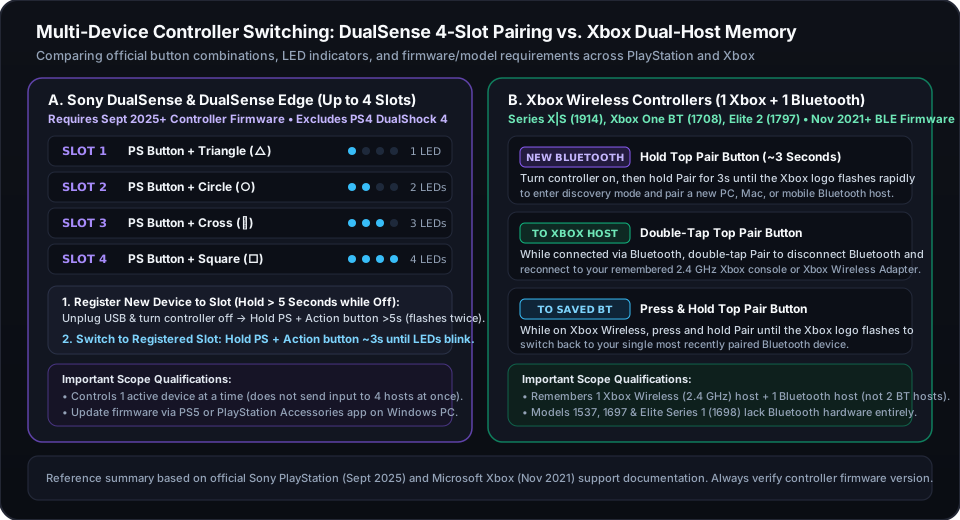
- Keep your Xbox controller firmware updated via the Xbox Accessories app so Bluetooth Low Energy (BLE) and dual-host switching between Xbox Wireless and Bluetooth are enabled.
How to Verify Bluetooth Connection & Mapping in the Gamepad Tester
Once your controller is paired and awake, our Gamepad Tester and Multiple Controller Test show you the exact telemetry exposed by your browser's W3C Gamepad API implementation:
- 1Distinguishing Real Hardware from Simulation Mode:
- If you click "Try Interactive Demo" without a physical controller connected, the page activates a synthetic demo mode clearly labeled with an amber "INTERACTIVE DEMO — Simulation Mode" banner ("This is a simulated controller — no physical hardware is being tested.").
- As shown in the authentic Simulation Mode screenshot below, the main header displays "SIMULATION MODE ACTIVE • W3C Standard Gamepad Protocol", the title "Xbox Wireless Controller (XInput)", the synthetic descriptor "Virtual Auto-Demo Controller (Interactive)", and six live telemetry cards reading INDEX: Virtual, CONNECTED: Simulated, MAPPING: standard, TIMESTAMP (live ms), VIBRATION: Unavailable, and POLLING RATE: 60 Hz (16.7ms).
- Expanding Step 4: Advanced Diagnostics > Show Advanced Lab > Hardware Technical Information (Inspect Specs) in Simulation Mode displays Device ID: Virtual Auto-Demo Controller (Interactive), Controller Slot: Index 99, Mapping Standard: standard (W3C), Sensors Count: 18 Buttons • 4 Axes, Vibration Actuator: Unsupported / Disabled, and Battery Level: Not Reported by Driver.
- When your real physical Bluetooth controller connects, the amber demo banner disappears, the status badge switches to a green "Gamepad Connected" indicator, the descriptor shows your OS driver's USB/Bluetooth hardware string, and INDEX displays a real zero-based slot from 0 to 3.
- 2W3C Standard Gamepad Layout (
B0–B16) vs. Our 18-Slot UI Matrix (B0–B17):- Canonical W3C Standard Layout: Under the W3C Gamepad API specification, a canonical "standard" gamepad (
Gamepad.mapping = "standard") defines 17 buttons—indexed B0 through B16 (buttons[0..16], from the four face buttons B0–B3 through the center guide button B16)—and 4 analog stick axes (axes[0..3]for Left Stick X/Y and Right Stick X/Y). - Why Our UI Matrix Shows
B0–B17(18 Slots): On the Gamepad Tester, the "BUTTONS ACTUATION & PRESSURE MATRIX (B0 - B17)" displays 18 button slots. Slots B0 through B16 represent the 17 canonical W3C Standard Gamepad buttons, while slot B17 is an extra UI inspection slot for controllers and OS drivers that expose an 18th auxiliary button (such as the Xbox Series X|S Share button, DualSense Touchpad click, or Nintendo Switch Capture button).
- 3Checking Multi-Controller Slot Collisions on Slots 0–3:
- If your Bluetooth controller is connected to the OS and you have pressed a face button, yet Slot 0 on a single-controller game or tester remains motionless, open the Multiple Controller Test.
- Inspect all four browser indices (Slot 0, Slot 1, Slot 2, and Slot 3) side by side to see whether a virtual driver (vJoy, ViGEmBus), a flight throttle, a racing pedal set, or a ghost Bluetooth entry is occupying Slot 0 while your active Bluetooth controller reports on Slot 1 or Slot 2.
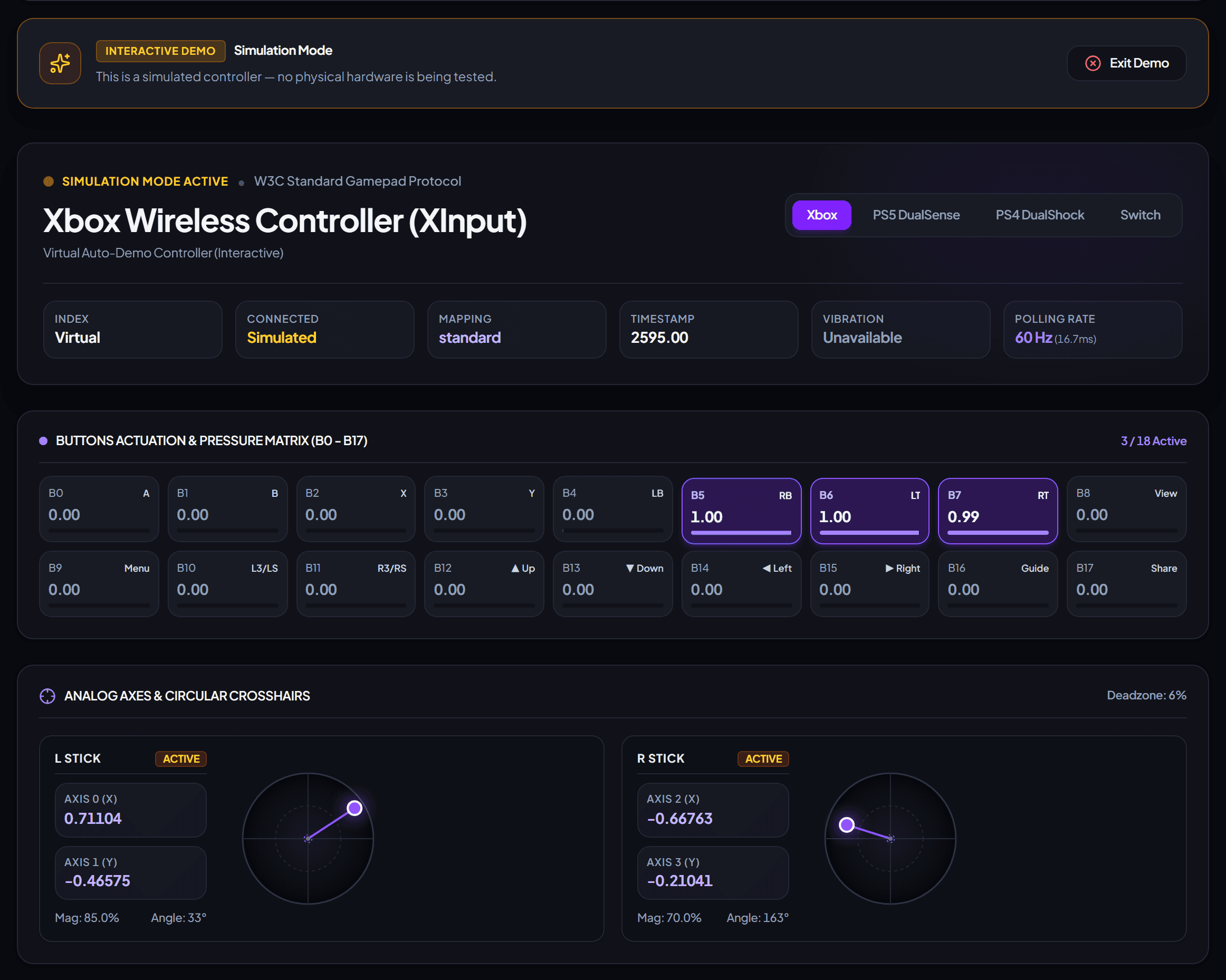
- Always check whether the header badge reads "Gamepad Connected" (physical hardware on Slot 0–3) or "SIMULATION MODE ACTIVE" (synthetic demo on Index Virtual / Index 99) before diagnosing inputs.
Why Button & Axis Mappings Change Between USB and Bluetooth
A controller that maps every button and trigger accurately over a wired USB cable can sometimes produce scrambled buttons, missing triggers, or an empty mapping string (mapping: "") when connected over Bluetooth:
- 1Separate USB vs. Bluetooth HID Report Descriptors:
- Many controllers—including the PS4 DualShock 4, PS5 DualSense, and Nintendo Switch Pro Controller—use different packet structures over Bluetooth than they do over USB.
- If your operating system version or browser layout table does not recognize the Bluetooth HID report mode (or if an older Xbox One Model 1708 controller is running pre-2021 firmware that exposes legacy DirectInput axis ordering over Bluetooth instead of modern Bluetooth Low Energy HID), the browser may fall back to
mapping: "".
- 2What Happens When
mapping: ""Is Active:- Instead of normalizing face buttons to B0–B3 and analog triggers to
buttons[6]andbuttons[7]inside the canonical 17-button (B0–B16) W3C layout, the browser passes through the OS driver's raw button and axis order. - On the Gamepad Tester, you may see rear triggers move axis channels or see D-Pad inputs appear on unexpected indices.
- 3Practical Fixes for Bluetooth Mapping Mismatches:
- Update Controller Firmware First: Connect Xbox controllers to the Xbox Accessories app (to install the Bluetooth Low Energy firmware update) or connect DualSense controllers to Sony's PlayStation Accessories app on Windows PC (or a PS5 console).
- Update Your Operating System & Browser: Native Bluetooth HID mapping tables for DualSense, Switch Pro, and Xbox BLE controllers are maintained inside Windows 10/11, macOS (see Apple's official controller guide at support.apple.com/en-us/111099), iOS/iPadOS, Android, and your browser engine.
- Check Background Remappers: If Steam Input, DS4Windows, or BetterJoy is translating Bluetooth packets into a virtual controller while leaving the raw Bluetooth HID device visible, your browser may read the wrong device slot or receive duplicate events.
- Compare MAPPING on the Gamepad Tester over USB vs. Bluetooth: if USB shows "standard" while Bluetooth shows raw/non-standard, check for a firmware update or a background remapper.
Troubleshooting Bluetooth Disconnects, Input Lag & Interference
Because Bluetooth controllers operate in the crowded 2.4 GHz ISM radio band (2.402 GHz to 2.480 GHz), wireless stability depends on clean line-of-sight, stable battery voltage, and proper host adapter configuration:
- 1Low Battery Voltage Under Rumble or Trigger Load:
- As a rechargeable Li-ion pack or AA pair nears depletion, average voltage may still keep the controller's status LED lit, but a sudden dual-motor vibration pulse on the Controller Vibration Test can cause transient voltage sag that resets the Bluetooth radio.
- Swap in fresh AA batteries or charge the internal battery via USB for at least 30 minutes before diagnosing random wireless drops.
- 2USB 3.0 Port & 2.4 GHz Radio Interference:
- Active USB 3.0 / 3.1 / 3.2 Gen 1 cables, external SSD enclosures, and multi-port hubs emit broadband radio noise across the 2.4 GHz spectrum.
- If you use a compact plug-in USB Bluetooth dongle plugged directly next to an active blue USB 3.0 port on the back of a desktop PC case, the metal chassis and USB 3.0 noise can cause severe packet jitter and short range.
- Move the USB Bluetooth dongle to a short 0.5m–1.0m USB 2.0 extension cradle on your desk away from USB 3.0 cables and dual-band Wi-Fi routers.
- 3Motherboard Wi-Fi / Bluetooth Antenna Not Attached:
- On desktop motherboards with built-in Wi-Fi and Bluetooth, both radios share the rear SMA antenna connectors. If the external desktop antenna is left inside the motherboard box, Bluetooth range typically drops to less than half a meter with heavy packet loss.
- 4Windows Bluetooth Adapter Power Management Drops:
- On Windows 10 and 11 laptops and desktops, power-saving rules can suspend the USB or PCIe Bluetooth radio during idle intervals.
- Open Device Manager > Bluetooth, double-click your primary Bluetooth radio adapter (such as Intel Wireless Bluetooth, Realtek, or MediaTek), check whether a Power Management tab is present, and uncheck "Allow the computer to turn off this device to save power".
- 5Audio & Multi-Device Bandwidth Contention:
- Connecting multiple high-poll-rate Bluetooth gamepads alongside a two-way Bluetooth headset (using the Hands-Free Profile) on a single shared Bluetooth radio can increase polling latency. Test your controller alone on the Gamepad Tester first to establish a clean baseline.
- If you use a desktop PC with integrated motherboard Bluetooth, confirm the external Wi-Fi/Bluetooth antenna is screwed onto the rear I/O panel.
Bluetooth vs. 2.4 GHz Wireless Adapters vs. Wired USB
When choosing how to connect your controller for testing or daily gaming, each transport offers distinct trade-offs:
- 1Standard Bluetooth (Classic HID & Bluetooth Low Energy):
- Best For: Cable-free convenience across laptops, Macs, iPads, iPhones, Android devices, and smart TVs without occupying a USB port.
- Trade-Offs: Shares the 2.4 GHz band with Wi-Fi and Bluetooth audio, relies on OS-specific HID descriptors, and typically does not carry proprietary headset jack audio or full DualSense haptics over standard PC Bluetooth drivers.
- 2Dedicated 2.4 GHz Wireless Adapters (Xbox Wireless Adapter & Vendor Dongles):
- Best For: Desktop PCs without reliable built-in Bluetooth, multi-controller couch setups, or lower-jitter wireless links.
- Important Distinction: Microsoft's Xbox Wireless protocol is a proprietary 2.4 GHz radio link—it is NOT Bluetooth. Connecting via the official Xbox Wireless Adapter for Windows exposes full XInput telemetry and controller headset audio on Windows 10/11.
- 3Wired USB Data Cable (USB-C or Micro-USB):
- Best For: Zero-battery operation, firmware updates, and differential troubleshooting when isolating wireless link issues.
- Trade-Offs: Requires a true 4-wire data cable (not a 2-wire charge-only cord) and physical tether length.
Platform-Specific Stale Pairing Resets & Software Conflict Checks
When a controller remains listed in your operating system's Bluetooth menu after you have already paired it to another device—or when a background utility intercepts its input stream—follow the platform reset below:
- 1Windows 10 & Windows 11 Bluetooth & Device Manager Reset:
- Open Settings > Bluetooth & devices > Devices, find your controller, click the three-dot menu, and select Remove device.
- If Remove device fails or the ghost entry returns immediately, right-click the Start button, open Device Manager, expand Bluetooth and Human Interface Devices, right-click any stale entry for your controller (choosing View > Show hidden devices if needed), and select Uninstall device.
- For Xbox controllers that appear paired yet produce no input on Windows, connect via USB and open the Xbox Accessories app to confirm the controller is running current firmware.
- Put the controller back into rapid-flash discovery mode (Section 3), click Add device > Bluetooth in Windows Settings, and pair fresh.
- 2macOS (Ventura, Sonoma, Sequoia & Later) Bluetooth Reset:
- Open Apple menu () > System Settings > Bluetooth.
- Hover over your controller under My Devices, click the info (i) button (or Control-click the device), and choose Forget This Device.
- Wait 5 seconds, put the controller into rapid-flash discovery mode, and select it under Nearby Devices. Once connected, verify that Apple menu () > System Settings > Game Controllers lists the controller.
- 3iOS, iPadOS & Android Pairing Cache Reset:
- On iPhone or iPad, open Settings > Bluetooth, tap the blue (i) icon next to the controller name, and tap Forget This Device.
- On Android, open Settings > Connected devices (or Bluetooth), tap the gear icon next to the controller, and tap Forget / Unpair.
- Re-enter discovery mode on the controller and pair it from the bottom discovery list rather than tapping an old cached row.
- 4Resolving Steam Input, DS4Windows & HidHide Interception:
- Steam Desktop Layout: If your controller moves the mouse cursor or triggers keyboard shortcuts when you press buttons in your browser, Steam's Desktop Layout is intercepting the device. Right-click the Steam tray/Dock icon and choose Exit Steam while running browser diagnostics, or disable Desktop Layout under Steam > Settings > Controller.
- DS4Windows, reWASD & HidHide: If a remapper or the HidHide driver filter hid your physical Bluetooth controller so games only see an emulated virtual gamepad, open the HidHide Configuration Client and uncheck the cloak box for your physical controller (or close the remapper cleanly), then re-check all four slots on the Multiple Controller Test.
- Whenever you re-pair a controller to a console or phone and then bring it back to a computer that does not use a dedicated multi-device slot, choose Forget / Remove Device in your computer’s Bluetooth settings and pair fresh.
Wireless controller connections depend on hardware Bluetooth discovery modes, multi-slot onboard link keys, OS HID driver enumeration, and the W3C Gamepad API user-gesture privacy and standard mapping specifications.
Official Sony instructions for DualSense Bluetooth discovery mode, multi-slot registration, and host switching.
Official Sony documentation for DualSense Edge Bluetooth pairing and multi-device slot management.
Technical overview of the 4-slot (PS + Triangle, Circle, Cross, Square) DualSense pairing architecture.
Documents Xbox Wireless Controller BLE firmware, Pair button double-tap to Xbox Wireless, and hold-to-switch back to Bluetooth.
Official Apple guide for pairing Bluetooth controllers and configuring Game Controllers settings on Mac, iPhone, and iPad.
Defines the canonical 17-button (B0–B16) and 4-axis (0–3) standard layout, gamepad user gesture, and Permissions-Policy rules.
Test Your Bluetooth Controller Connection Live
Verify W3C Gamepad API wake-up, check whether your Bluetooth driver uses standard (B0–B16) or raw mapping, and inspect active slots 0–3.
Related Diagnostic Tools
Related Articles & Manuals
Frequently Asked Questions
Why is my Bluetooth controller connected to my PC or Mac, but not detected by the browser?
First, confirm in your OS Bluetooth settings that the controller has an active live connection rather than just a saved profile from an earlier session (exact status wording varies by operating system). Second, under the W3C Gamepad API privacy model, browsers hide connected controllers until you interact with the controller while the page is visible. Click inside the Gamepad Tester tab and press a physical face button (such as A / Cross on B0) to fire the gamepadconnected event.
How do I switch my PS5 DualSense controller between my PS5, PC, Mac, and phone?
On supported firmware, DualSense and DualSense Edge controllers can store up to four pairing slots mapped to the four face buttons: Triangle (Slot 1), Circle (Slot 2), Cross (Slot 3), and Square (Slot 4). With no USB cable attached, press and hold PS + one face button for about 5 seconds (until the lightbar double-blinks) to register a device to that slot. Afterward, press and hold PS + that assigned face button for about 3 seconds to switch directly to that paired host.
How does the Pair button switch an Xbox controller between an Xbox console and Bluetooth?
On supported Bluetooth-capable Xbox controllers (Series X|S Model 1914, Elite Series 2 Model 1797, Xbox One Bluetooth Model 1708, and Xbox Adaptive Controller) with the November 2021 BLE firmware update or later, the top Pair button has three distinct actions: (1) press and hold Pair for ~3 seconds while on to enter rapid-flash discovery mode for a new Bluetooth device; (2) double-tap Pair while on Bluetooth to switch back to a remembered 2.4 GHz Xbox Wireless console or adapter; and (3) press and hold Pair while on Xbox Wireless to switch back to your single most recently paired Bluetooth device.
Why does the Gamepad Tester show 18 button slots (B0–B17) if the W3C Standard Gamepad layout has 17 buttons?
The canonical W3C Standard Gamepad layout (mapping: "standard") defines 17 buttons (B0 through B16) and 4 analog stick axes (Axes 0 through 3). Our Gamepad Tester UI displays an 18-slot matrix (B0–B17) so that if your controller and OS driver expose an 18th auxiliary button—such as the Xbox Series X|S Share button, DualSense Touchpad click, or Nintendo Switch Capture button—you can test it on slot B17 alongside the 17 standard buttons.
Does a working wired USB test prove my controller has zero hardware issues?
No. Testing over wired USB vs. Bluetooth is a differential diagnostic step, not absolute proof of total hardware health. If a controller works over USB but fails over Bluetooth, it points toward a difference in the wireless transport, pairing state, Bluetooth driver mapping, or radio environment. Conversely, if the same symptom appears on both USB and Bluetooth, it points to a factor shared by both modes—such as calibration state, a system-wide software filter (Steam Input or HidHide), or hardware state.