Understanding Joystick Circularity & Radial Deviation: What Outer Stick Traces Actually Measure
Learn how the 72-sector outer trace works, why controllers produce circular or rounded-square boundaries, and how to read radial deviation accurately.
On This Page (10 Sections)
Circularity vs. Stick Drift: Two Fundamentally Different Measurements
When you push a controller thumbstick against its outer plastic rim and rotate it on a diagnostic page, the tool draws a perimeter shape and calculates a percentage called Average Radial Deviation (often referred to on forums as "circularity error"). Because that result is displayed as a percentage, many players assume 0.0% means a flawless thumbstick and a higher number means the stick is defective, drifting, or counterfeit.
In reality, a browser circularity test measures one specific geometric property: how closely the outer coordinates reported to your browser match a mathematical circle of radius 1.000 when the stick is tilted past 40% deflection.
Before reading a circularity percentage, it helps to distinguish outer circularity from stick drift. These two tests focus on different parts of the thumbstick's physical travel:
- Stick Drift (Resting Center Behavior): Drift testing looks at what happens near the center origin
(0.000, 0.000)when you take your thumb completely off the stick, or right after the stick snaps back to rest. If the resting coordinate stays outside a game's inner deadzone, the camera or character moves on its own. - Outer Circularity (Full-Tilt Boundary Geometry): Circularity testing looks at the outer boundary when you push the thumbstick shaft all the way against the circular housing collar.
On JoystickTester.com, the circularity tracker ignores all stick movement at or below 40% tilt (r ≤ 0.400). That means small resting offsets or minor center jitter are excluded from the circularity percentage.
Because the two measurements inspect different zones, a high radial deviation percentage on an outer trace does not prove your controller has stick drift, and a low radial deviation percentage does not guarantee your stick centers cleanly at (0.000, 0.000). At the same time, the two regions are not always mechanically isolated: a severely shifted calibration center, a loose gimbal, or a binding sensor mechanism can affect both resting center coordinates and outer boundary symmetry at once. To check resting behavior specifically, pair your outer trace with our Controller Deadzone Test and our Controller Stick Drift Guide.
- Outer circularity only records stick movement beyond 40% deflection (
r > 0.400)—to test whether your stick drifts when untouched, use the Controller Deadzone Test.
What the Joystick Outer Trace Measures
A web browser cannot measure raw electrical voltage inside a sensor, measure physical thumbstick tilt angle in degrees directly at the gimbal, or measure physical shaft displacement in millimeters along the housing rim. Instead, the browser reads normalized coordinate numbers exposed by the W3C Gamepad API (navigator.getGamepads()) on each display animation frame (requestAnimationFrame).
When a controller uses the W3C "standard" mapping, the browser reports two floating-point numbers for each thumbstick, nominally scaled from -1.000 to +1.000:
- Left Stick:
axes[0](Horizontal X: -1.000 Left to +1.000 Right) andaxes[1](Vertical Y: -1.000 Up to +1.000 Down). - Right Stick:
axes[2](Horizontal X) andaxes[3](Vertical Y).
Plain-English Explanation of the 72 Sectors:
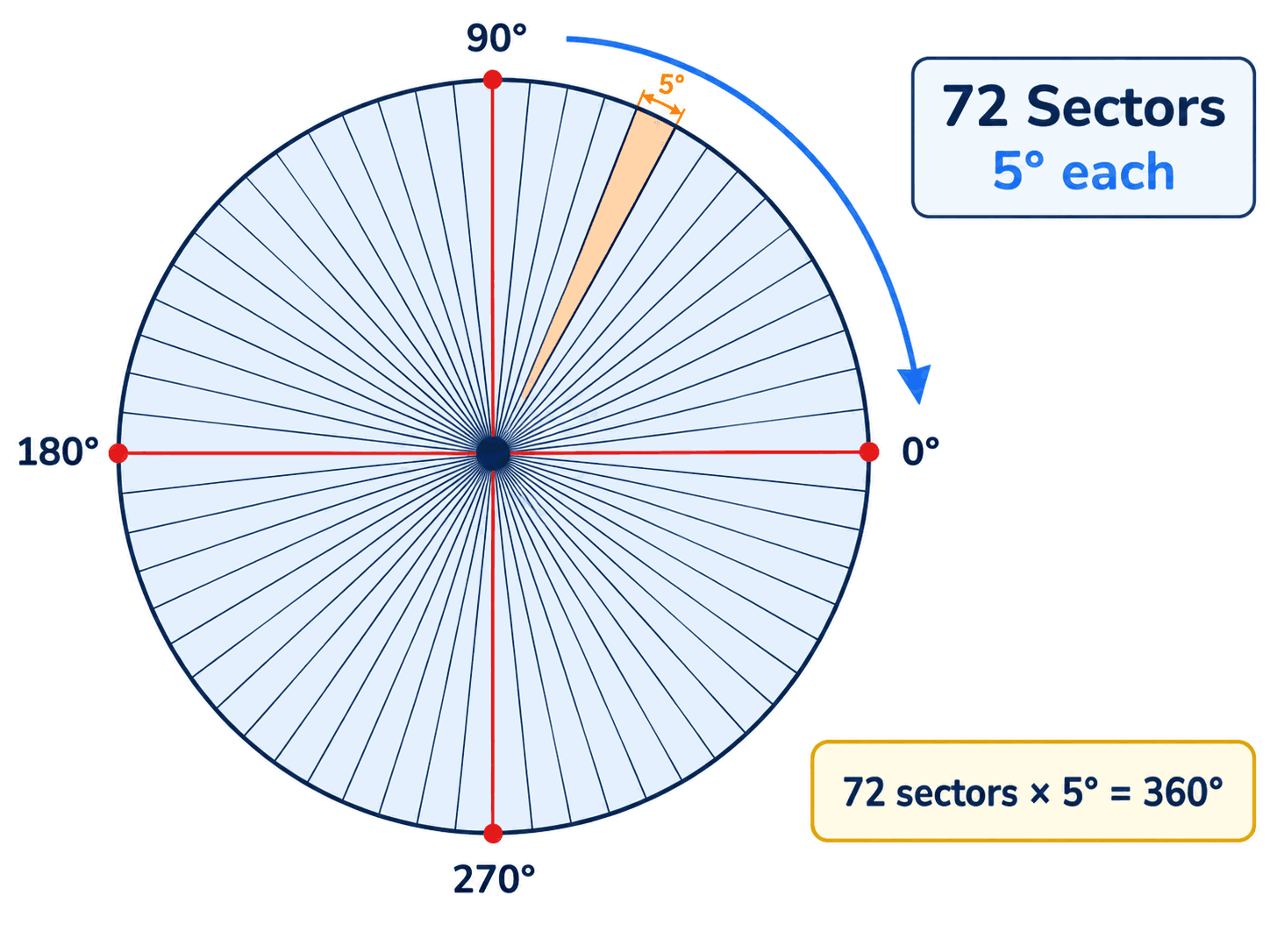
Think of the circular radar on the Joystick Tester as a compass face divided into 72 equal slices (sectors), where each slice covers 5 degrees of rotation (72 × 5° = 360°).
- 1Whenever you push the stick past 40% tilt (
r > 0.400), the tool checks which of the 72 five-degree slices the stick is pointing into and how far from the center(0.000, 0.000)that coordinate sits. - 2Inside each 5° slice, the tool remembers only the farthest point your stick reached during the current test.
- 3As you roll the stick all the way around the rim, those 72 farthest points are connected in a ring to form the violet outer trace polygon, and each point is compared against the solid gray reference circle (
r = 1.000).
Optional Technical Math (How Our Diagnostic Computes Each Sample):
- Radius (r):
r = √(x² + y²), measuring the straight-line Euclidean distance from (0, 0) to (x, y). - Outer Gate Filter: Any sample with
r ≤ 0.400(CIRCULARITY_MIN_MAGNITUDE = 0.4) is ignored. - Polar Angle (θ) & Sector Index (0 to 71): θ = atan2(y, x) × (180 / π) normalized to [0°, 360°), mapped to binIdx = floor(θ / 5°) mod 72. (Note: On the live Polar Angle readout card, screen Y is inverted via atan2(-y, x) so Up reads 90.0°.)
- Per-Sector Maximum Retention: Within each 5° bin, a new sample replaces the stored point only when no sample exists yet or when r > existing.radius.
- Open the Joystick Tester to watch live Cartesian (X, Y) coordinates, polar magnitude (r), and 72-sector coverage update simultaneously.
Step-by-Step Instructions for a Complete 72-Sector Circularity Sweep
Because the tracker stores the farthest point reached in each 5° slice, the way you move your thumb directly shapes the recorded trace. Follow these five steps on the Joystick Tester for a clean, repeatable sweep:
- 1Connect and Wake Your Physical Controller: Plug in your controller via USB or connect it over Bluetooth, click inside the browser tab, and press any physical button so your device appears in Slot 0–Slot 3. Confirm that the amber "Simulated Input Active" banner is not displayed, as simulated mode generates a synthetic mathematical curve rather than reading physical sensors.
- 2Reset Existing Trace Data: Click "Reset Both Traces" in the top header (or the "Reset Trace" button on an individual stick card) so the sector counter resets to
0 / 72 Sectors (0%). - 3Tilt the Stick to the Outer Collar: Push the thumbstick smoothly until the shaft touches the circular plastic rim. Use steady, comfortable thumb pressure—pressing hard enough to flex the plastic shell or accidentally click L3/R3 (B10/B11) is unnecessary and can cause uneven contact along the rim.
- 4Rotate Slowly 360° in Both Directions: Keeping the shaft lightly against the outer collar, roll the stick slowly around the entire perimeter for 2 to 3 full turns (one clockwise and one counter-clockwise). Rolling slowly gives the browser's frame loop time to capture at least one sample inside every 5° sector.
- 5Verify Sector Coverage Before Reading Deviation: Check the badge at the top of the 72-Sector Outer Circularity Trace panel and confirm it reads
72 / 72 Sectors (100%)(or close to full coverage) before evaluating Avg Radial Dev. or Max Radial Dev.
- Roll the stick slowly for 2–3 full rotations in both clockwise and counter-clockwise directions until the badge reads
72 / 72 Sectors (100%).
How to Interpret Sector Coverage, Average Radial Deviation & Maximum Deviation
Once you complete a sweep on the Joystick Tester, three metrics appear below the radar scope:
- 1Angular Coverage (X / 72 Sectors and %):
Angular coverage shows how many of the 72 five-degree slices have recorded at least one outer sample (
r > 0.400) since your last reset.- Plain-English Meaning: Coverage measures whether you completed the test movement around the perimeter, not how accurate your controller is. On our page, if coverage is below 60% (fewer than 44 sectors), the summary box displays "Partial Perimeter Trace" to remind you to keep rotating the stick around the rim.
- 2Average Radial Deviation (Avg Radial Dev.):
Average radial deviation measures how far, on average, your recorded outer trace sits from the
r = 1.000reference circle across all sampled sectors, expressed as a percentage.- Plain-English Meaning: If every recorded sector landed right on the
r = 1.000circle, the average deviation would be 0.0%. In a hypothetical numerical example where every sector reachedr = 1.080(8% outside the circle) orr = 0.920(8% inside the circle), both cases produce the exact same 8.0% average radial deviation because the calculation averages the unsigned distance|r − 1.000|in either direction. - Why Average Deviation Cannot Establish Asymmetry Alone: Because Average Radial Deviation averages
|r − 1.000|across all sampled sectors without preserving sign or compass direction, it cannot tell you whether a trace is symmetrical or lopsided. A balanced rounded-square trace and an off-center, skewed trace can report the exact same average percentage. Always inspect the actual 2D outer trace polygon and sector dot colors on the radar:- Green dots (
|r − 1.000| ≤ 0.060): Within ±6% of ther = 1.000reference circle. - Sky-blue dots (
r > 1.060): Extending outside ther = 1.000circle (common in the four diagonal corners). - Amber dots (
r < 0.940): Stopping short inside ther = 1.000circle.
- Green dots (
- 3Maximum Radial Deviation (Max Radial Dev.):
Maximum radial deviation shows the single largest percentage gap from
r = 1.000recorded in any one of the sampled 5° sectors.- Plain-English Meaning: This highlights peak corner overshoot or the deepest inward flat spot. For instance, in a hypothetical trace where the four cardinal directions (Up, Down, Left, Right) sit at
r = 1.000(0% difference) while the four diagonal corners extend tor = 1.160, Max Radial Dev. will report 16.0% even though Avg Radial Dev. across all 72 sectors is much lower.
Optional Technical Math (From calculateCircularityStats):
- Angular Coverage (%): round((sampledBins / 72) × 100)
- Average Radial Deviation (%): ((∑ |r_max,i − 1.0|) / sampledBins) × 100
- Maximum Radial Deviation (%): max_i (|r_max,i − 1.0| × 100)
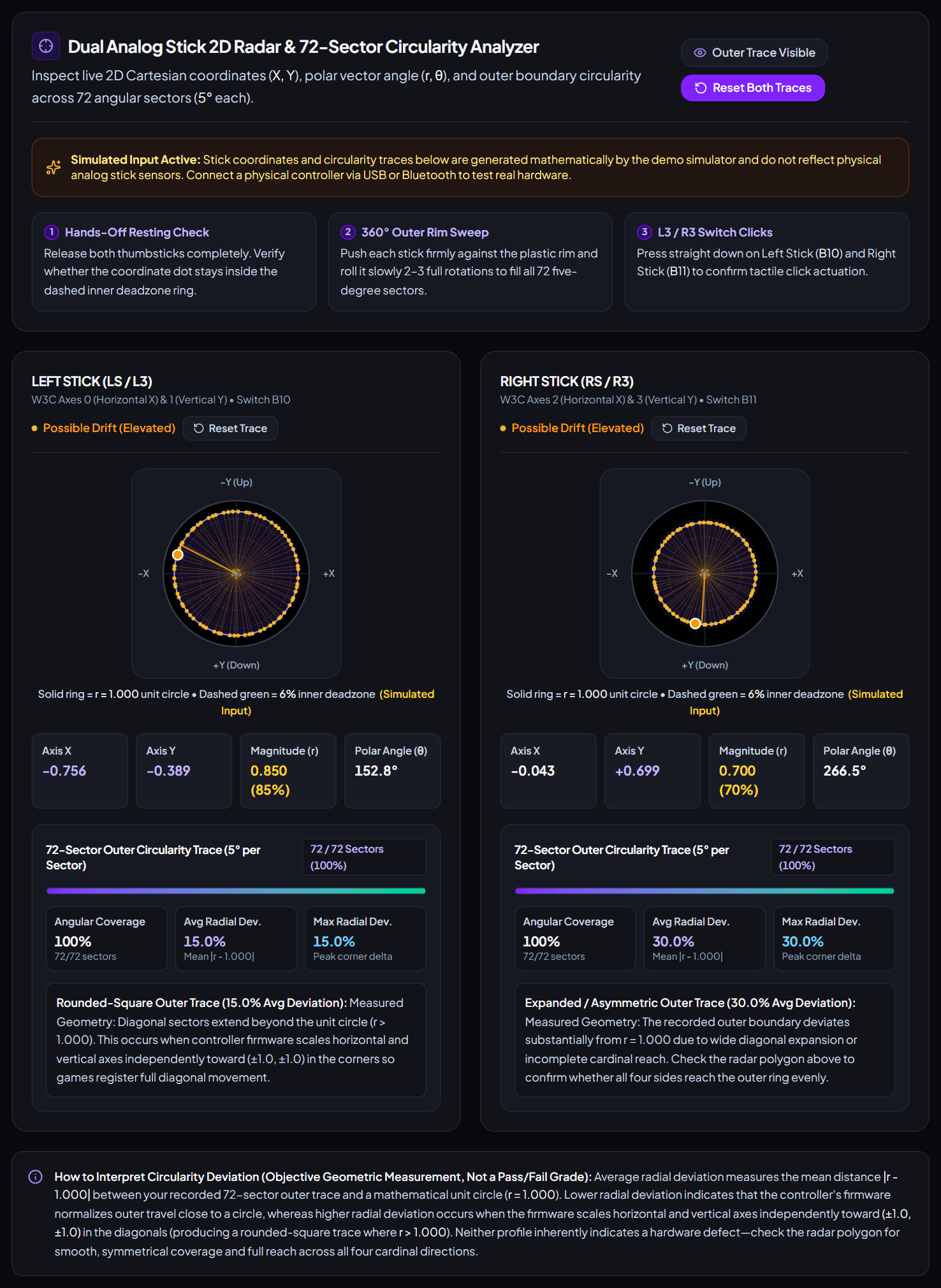
- Always inspect the visual 2D polygon on the radar rather than relying on Avg Radial Dev. alone—green dots sit near
r = 1.000, sky-blue dots extend outside the circle, and amber dots stop short inside the circle.
Why Some Controllers Produce Circular vs. Rounded-Square Traces
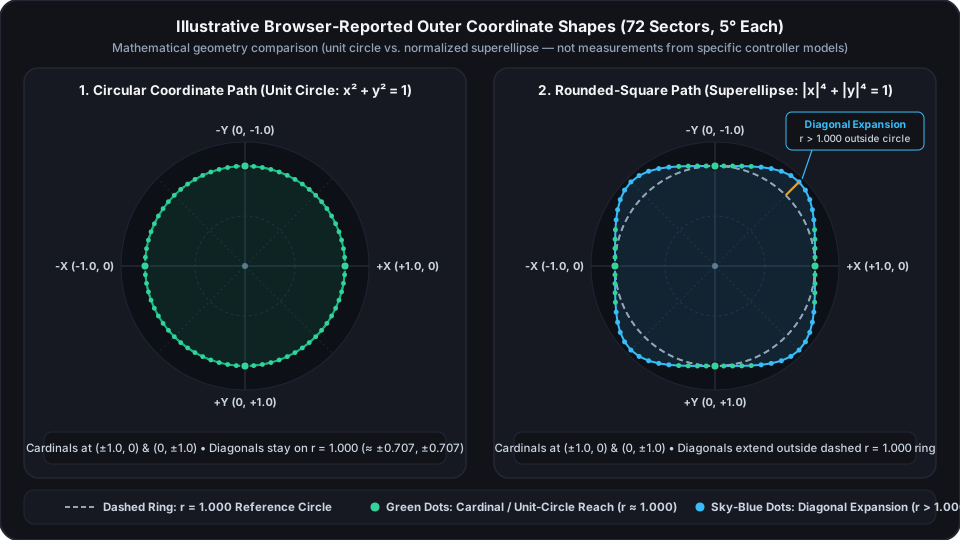
Even though the physical plastic opening around almost every modern thumbstick is circular, different controllers—and even the same controller connected through different software layers—often draw either a tight circle or a rounded square (where the four diagonal corners bulge outward past r = 1.000, plotted up to ±1.25 on our radar).
That outer shape is not determined by one single component. Instead, it reflects how five layers interact between your thumb and the browser:
- 1Two Perpendicular Axis Sensors on a Square Coordinate Grid: A thumbstick measures horizontal (X) and vertical (Y) tilt on two perpendicular axes, each normalized to
[-1.000, +1.000]. On a 2D graph, the region where both X and Y can reach ±1.000 forms a square whose corners sit at a radial distance of √(1² + 1²) ≈ 1.414. - 2Mechanical Gate Geometry: The physical plastic collar (or circular/octagonal faceplate ring) stops the thumbstick shaft mechanically as you rotate it around the perimeter. Manufacturing tolerances, shaft diameter, or aftermarket thumbstick caps change how far the gimbal pivots before touching the rim.
- 3Sensor Response, Calibration Tables & Onboard Processing: Inside the controller, raw sensor readings are mapped against stored center and outer calibration endpoints. Some designs normalize the combined (X, Y) vector radially so the outer boundary stays near
r = 1.000at every angle (producing a circular trace). Other designs scale the X and Y axes more independently so tilting into a diagonal corner pushes both axes closer to (±0.80, ±0.80) or higher before clamping at ±1.000 (producing a rounded-square trace withr > 1.000in the diagonals). - 4OS Drivers & Input Wrappers: Operating system drivers (Windows XInput, DirectInput, or macOS GCController) and software translation layers (such as Steam Input or third-party remappers) can apply their own radial or axial deadzones, outer threshold scaling, or custom response curves.
- 5Browser W3C Gamepad API Remapping: Finally, your browser normalizes the driver's reported axis values into the W3C
[-1.000, +1.000]floating-point array read by the page.
Why a Low Circularity Deviation Percentage Does Not Automatically Mean a Better Controller
A common misconception in online controller discussions is that a low radial deviation percentage (for example, a hypothetical 1% or 2% reading) proves a controller has higher-grade sensors or proves it uses Hall Effect or TMR magnetic sensors, while a higher reading (such as a hypothetical 10% or 12% rounded-square trace) indicates inferior hardware.
In practice, circularity percentage alone cannot rank controller quality or identify sensor technology:
- Radial Clamping Can Be Applied to Any Sensor Type: Whether a thumbstick uses carbon-film potentiometers, Hall Effect magnetic sensors, or Tunnel Magnetoresistance (TMR) modules, normalizing (x, y) coordinates onto a unit circle (
r = 1.000) is a mathematical scaling choice. A low deviation percentage only shows that the final output coordinates are clamped close to a circle—it does not measure internal sensor resolution, centering repeatability, noise floor, or mechanical durability. - Game Engines Process Diagonal Input Differently: Game developers use different axis-processing algorithms depending on the game genre. A game engine that evaluates polar vector magnitude (
r = √(x² + y²)) reaches full input intensity as soon as r reaches 1.000 (which occurs around (0.707, 0.707) on a unit circle). By contrast, a game or emulator that evaluates horizontal X and vertical Y axes independently against separate per-axis thresholds may respond differently to diagonal tilt depending on how far each individual axis extends in the corners. Neither a circular trace nor a rounded-square trace is universally better for every game.
How Incomplete Sector Coverage Can Distort Interpretation
Because our diagnostic records any movement where r > 0.400, an incomplete or rushed sweep can produce misleading numbers on a properly functioning controller:
- Cutting Across the Circle Leaves Artificial Flat Chords: Suppose you push the stick straight Up (
r = 1.000), let it pull inward tor = 0.550as you move toward Right, and then release it. Because 0.550 is above the 0.400 recording gate, the 5° sectors between Up and Right record 0.550 (45% below 1.000), drawing a flat inward line across the upper-right quadrant and raising both Avg Radial Dev. and Max Radial Dev. Pushing the stick all the way against the outer collar and sweeping slowly through that quadrant immediately overwrites those 0.550 points with the true outer boundary. - Touching Only a Few Angles Skews the Average: Flicking the stick only to Up, Down, Left, and Right samples only a small fraction of the 72 sectors and leaves the four diagonal corners unsampled. Whenever a trace looks jagged or incomplete, check Angular Coverage first, click "Reset Trace", and perform a slow 2–3 turn rotation along the collar until coverage reaches
72 / 72 Sectors (100%).
How to Recognize Suspicious Asymmetry or Restricted Travel
Instead of treating the deviation percentage as a pass/fail score, use the 72-sector radar on the Joystick Tester to visually inspect symmetry and full cardinal reach:
- 1Balanced Circle or Balanced Rounded Square: If the polygon reaches near the
r = 1.000circle at -Y (Up), +Y (Down), -X (Left), and +X (Right) and looks symmetrical left-to-right and top-to-bottom (whether circular or rounded-square in the corners), the outer boundary is consistent. - 2Inward Flat Spots or Restricted Reach (
r < 1.000with Amber Dots): If an entire side or corner of the polygon stays well inside the solidr = 1.000ring even after you slowly roll the stick firmly against the collar, the browser is receiving undersaturated coordinates in that direction. - 3Lopsided or Shifted Polygon: If the trace extends far past the circle on one side (for example, +X Right) while falling short inside the circle on the opposite side (-X Left), the axis range or center offset is skewed.
Checking Possible Causes Without Jumping to Hardware Failure Conclusions:
An inward flat spot or asymmetric polygon in the browser shows what coordinates the web page received, but it does not by itself prove a broken internal part. Check these possibilities in order:
- Incomplete Sweep Technique: Re-sweep the affected region slowly while maintaining steady contact against the outer collar to rule out an accidental mid-stick shortcut.
- Browser / OS Mapping or Active Software Profiles: Check whether the amber "Non-Standard HID Mapping (
mapping: '')" notice appears on the page, or whether a background remapper (such as Steam Input desktop configuration, DS4Windows, or a vendor utility) is applying a custom response curve or outer deadzone limit. - Shifted Calibration Bounds: If a controller's stored minimum/maximum axis endpoints are out of alignment—or if replacement thumbstick modules were installed without running a range calibration afterward—one direction may cap below 1.000 until recalibrated.
- Physical Rim Interference: Inspect the thumbstick collar for external obstructions, such as a thick silicone thumb-grip sleeve rubbing against the faceplate edge or a shell that is not seated evenly.
- If one side of your outer trace shows amber dots (
r < 0.940), first remove any aftermarket silicone thumb-grip caps and re-sweep slowly against the rim to rule out physical collar interference.
When to Use Our Calibration and Deadzone Tools for Follow-Up Testing
Depending on what you observe on the Joystick Tester, two companion diagnostics on JoystickTester.com can help you verify the next step:
- 1Follow Up Undersaturation or Asymmetry on the Controller Calibration Tool:
- What It Checks: Step 1 samples a 60-frame hands-off resting baseline (meanX, meanY, and peak-to-peak jitter), and Step 2 records your exact minimum and maximum cardinal reach (Min X, Max X, Min Y, Max Y), total axis span, and directional symmetry. On our calibration page, each cardinal direction is compared against an illustrative ≥ 0.950 (95%) UI threshold ("Full Cardinal Saturation (>=95%)"). Step 3 provides a temporary browser-session normalization preview so you can see whether zero-point subtraction and range rescaling balance the stick's output.
- Choosing an Appropriate Calibration Utility: Because web browsers operate in a read-only security sandbox and cannot write calibration tables to controller hardware or OS drivers, persistent calibration must be performed outside the browser. As detailed in our How to Calibrate Your Controller Guide, available utilities depend on your specific controller model, firmware, and operating system:
- Microsoft Xbox Accessories App (Windows & Xbox Consoles): Provides a guided firmware thumbstick recalibration wizard for supported official Xbox Wireless controllers, depending on controller model, firmware version, and feature availability inside the app (check whether "Recalibration options" appears for your specific controller in Xbox Accessories).
- Windows USB Game Controllers Setup (
joy.cpl): Provides a local Windows DirectInput registry axis calibration wizard for standard USB gamepads and joysticks. - Sony PlayStation Accessories App (Windows PC): Provides official firmware updates for DualSense wireless controllers and stick sensitivity/deadzone profile customization for the DualSense Edge controller (note that PlayStation Accessories does not document a built-in zero-point or outer-boundary calibration wizard for standard DualSense controllers).
- Steam Input (Windows, macOS & Linux): Provides software-level inner and outer deadzone adjustments for games launched through Steam.
- 2Follow Up Resting Center Offset on the Controller Deadzone Test:
- What It Checks: If your outer 72-sector trace looks balanced, but the stick settles away from
(0.000, 0.000)when released after flicking Up, Down, Left, and Right, open the Controller Deadzone Test. You can adjust the interactive 0%–35% inner deadzone slider while comparing Raw API Magnitude against Post-Deadzone Output to identify an appropriate in-game inner deadzone setting.
- Use the Controller Calibration Tool to check individual Min/Max cardinal reach, and use the Controller Deadzone Test to compare resting center offset against inner deadzone thresholds.
Browser circularity diagnostics read normalized [-1.0, 1.0] axis coordinates exposed by the W3C Gamepad API and evaluate outer radial distance across 72 five-degree angular sectors.
Specifies how standard thumbstick axes (axes[0..3]) map horizontal and vertical travel to [-1.0, 1.0].
Documents the floating-point axis array returned by navigator.getGamepads().
Explains how web applications poll live gamepad coordinates inside requestAnimationFrame loops.
Official guide for Xbox thumbstick recalibration on supported controller models and firmware.
Official Windows app for DualSense firmware updates and DualSense Edge profile customization.
Run a 72-Sector Circularity Sweep
Plot your thumbstick outer boundary across 72 five-degree sectors, check angular coverage, and inspect radial deviation live.
Related Diagnostic Tools
Related Articles & Manuals
Frequently Asked Questions
What is a "good" joystick circularity percentage?
There is no single universal "good" percentage across all controllers. A low average radial deviation simply means the coordinates reaching your browser are clamped closely to a unit circle (r = 1.000), whereas a higher percentage with sky-blue corners typically reflects rounded-square diagonal scaling (r > 1.000 in the corners). Instead of treating the percentage as a quality score, inspect the 2D radar polygon after a full 72 / 72 Sectors (100%) sweep to confirm that all four cardinal directions reach near the r = 1.000 ring and that the overall shape is smooth and symmetrical.
Does a high circularity deviation percentage mean my controller has stick drift?
No. Our circularity calculation only records outer stick positions where deflection exceeds 40% (r > 0.400), while stick drift occurs near the resting center (0.000, 0.000) when your thumb is off the stick. Although a severe sensor or calibration fault can affect both center and outer readings, you should test stick drift directly by releasing the sticks and checking resting offset on our Controller Deadzone Test.
Why does my circularity trace show a flat dent on one side?
First, check whether your thumb pulled slightly away from the outer collar while rotating through that section. Because the tool records any sample above 40% tilt, cutting across the circle leaves an inward line until you push the stick all the way to the rim through those 5° sectors. If the trace still stops short inside the r = 1.000 ring while the stick shaft is pressed firmly against the collar, check for a rubbing silicone thumbstick cap, verify whether any remapping software is limiting axis output, or test cardinal reach on our Controller Calibration Tool.
Can a browser circularity test tell whether my controller has Hall Effect, TMR, or potentiometer sticks?
No. Through the W3C Gamepad API, your browser only receives normalized -1.000 to +1.000 floating-point coordinates after the controller firmware and your operating system driver have scaled the signal. Potentiometer, Hall Effect, and TMR thumbsticks can each produce either a circular trace or a rounded-square trace depending on their mechanical gate, calibration bounds, and scaling curve.
Why did my outer circularity trace change after calibrating my controller or enabling Steam Input?
Calibration utilities and input wrappers redefine the minimum, center, and maximum axis values used to scale raw sensor output into the -1.000 to +1.000 range. When those endpoints or response curves change, the maximum radius r = √(x² + y²) reported at the outer rim changes as well—altering both the visual polygon and the calculated radial deviation.