PS5 Controller Tester & DualSense Diagnostic Online
Precision browser-based diagnostics for Sony PlayStation 5 DualSense and DualSense Edge controllers. Verify stick drift, L2/R2 analog trigger stroke, button responsiveness, and standard dual-rumble actuation.
Plug in your controller & press any button, or test using keyboard emulation / auto demo.
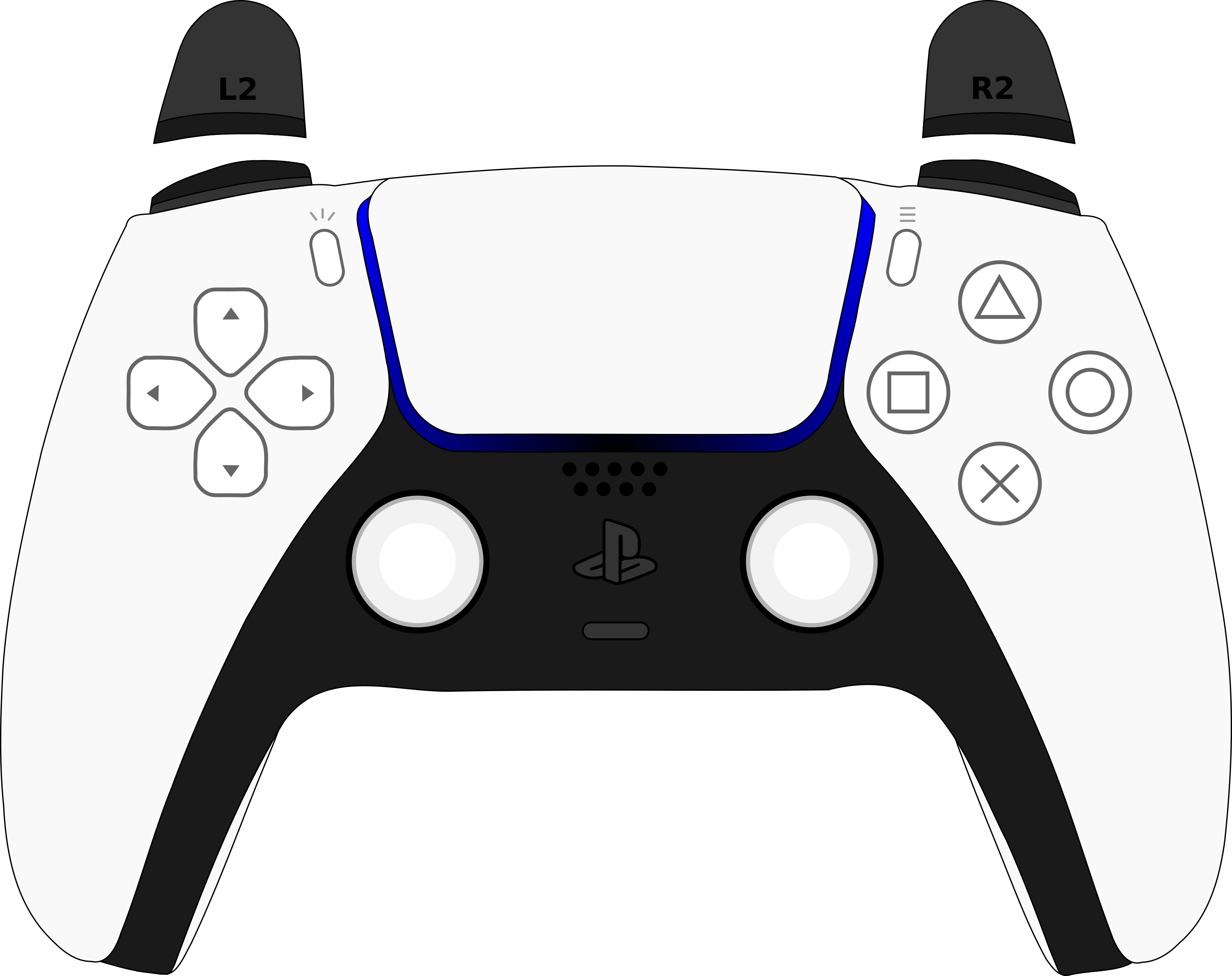

Connect Your PS5 DualSense to Begin Live Testing
Plug in via USB or pair over Bluetooth, then press any button (such as Cross ✕ or PS) to wake the browser Gamepad API and launch the full diagnostic suite on this page.
B0–B17 including Create, Options, PS, and physical Touchpad Click B17), Left/Right stick coordinates, deadzone & drift analysis, 72-bin circularity radial deviation trace, continuous L2/R2 pull depth (0.000–1.000), and standard dual-rumble actuation (Chromium desktop browsers when exposed by OS USB/XInput driver; not supported in Firefox or Safari).B18), and RGB lightbar programming. Browser polling rate reflects requestAnimationFrame sampling cadence rather than raw USB hardware interrupts.PS5 DualSense Hardware Architecture & Subsystems
Physical sensor technology, switch types, and mechanical engineering details
Symmetrical thumbstick layout utilizing ALPS Alpine RKJXV carbon-track potentiometers (approx. 10kΩ nominal resistance) or third-party Hall Effect magnetic sensor upgrades. Provides continuous normalized analog float coordinates [-1.0, 1.0].
L2 and R2 utilize progressive analog potentiometers combined with internal geared stepper motors for adaptive dynamic resistance. Web browsers read continuous stroke depth (0.000 to 1.000); adaptive motor resistance stops are controlled exclusively by native PS5 SDKs and supported PC titles.
Tactile conductive silicone membrane switches under Cross, Circle, Square, and Triangle face buttons. Discrete microswitches for Create (Share), Options, L3, R3, and capacitive Touchpad physical click (W3C standard button index B17). 4-way independent-feel silicone membrane directional pad with center pivot blocker to prevent simultaneous opposite cardinal presses.
Dual Linear Resonant Actuators (LRA) inside the grips. While native PS5 games drive wideband audio waveforms, Chromium desktop browsers (Chrome, Edge, Opera) can trigger standard dual-rumble emulation when the OS driver exposes vibrationActuator (typically via USB-C or an XInput compatibility layer; not supported in Firefox or Safari).
Recommended PS5 DualSense Diagnostic Procedure
Step-by-step verification order to detect intermittent or subtle hardware defects
Connect your DualSense, release both thumbsticks completely, and observe the Deadzone Radar while the controller rests untouched. Small resting offsets can occur naturally even on healthy controllers. However, persistent unintended movement indicates stick drift, whose practical in-game impact depends on your game inner deadzone settings.
Rotate the left and right sticks slowly through full 360-degree sweeps. Confirm that the coordinate dot traces a clean outer perimeter without severe flat spots or clipping.
Gradually depress L2 and R2 from rest to bottom-out. Confirm smooth linear progression from 0.000 up to 1.000 without jumping or premature saturation.
Press each face button, bumper (L1/R1), Create, Options, and depress the center touchpad to verify instant registration on button indices B0 through B17.
PS5 DualSense Button Mapping & Standard Pinout
Standard W3C Gamepad API index assignments for PS5 DualSense
| API Index | PS5 DualSense Physical Label | Sensor Type |
|---|---|---|
| B0 (Bottom) | Cross (✕) | Digital Actuation |
| B1 (Right) | Circle (○) | Digital Actuation |
| B2 (Left) | Square (□) | Digital Actuation |
| B3 (Top) | Triangle (△) | Digital Actuation |
| B4 / B5 | L1 / R1 Bumpers | Digital Tactile |
| B6 / B7 | L2 / R2 Triggers | Analog Stroke (0-100%) |
| B8 / B9 | Create (Share) / Options | Menu Tactile |
| B10 / B11 | L3 / R3 Thumbsticks | Stick Depress |
| B12 - B15 | D-Pad Up/Down/Left/Right | 8-Way Matrix |
| B16 / B17 | PS Button / Touchpad Click | System Special |
Common PS5 DualSense Hardware Issues & Diagnostics
Symptom analysis and verified testing procedures
How to Connect PS5 DualSense to PC or Mac
- 1USB-C Wired Connection: Connect the DualSense to your PC or Mac using a USB-C data cable. Windows and macOS recognize the controller immediately via USB HID.
- 2Bluetooth Pairing Mode: With the controller turned off, press and hold the Create button (top-left of touchpad) and PS Home button simultaneously for 3-5 seconds until the light bar emits rapid double-flash pulses.
- 3System Bluetooth Setup: Open Windows Settings > Bluetooth & Devices (or macOS System Settings > Bluetooth) and select "Wireless Controller".
- 4Browser Activation: Return to this webpage and press the Cross (X) or PS button to trigger the browser Gamepad API security permission.
On Windows, macOS, and Linux, web browsers expose DualSense (054c:0ce6) and DualSense Edge (054c:0df2) buttons (B0–B17) and thumbsticks (Axes 0–3) through the W3C Standard Gamepad interface. Low-level features documented in the Linux hid-playstation kernel specification—such as adaptive trigger resistance servos, audio-driven LRA haptics, LEDs, and gyroscope/accelerometer axes—are not exposed to web browsers via navigator.getGamepads() on Windows or macOS.
Defines browser-exposed button indices (B0–B17) and normalized [-1.0, 1.0] stick axes.
Hardware reference for DualSense USB/Bluetooth HID IDs and packet layouts (kernel-level features are not exposed in browser Gamepad API).
Frequently Asked Questions
Does PS5 DualSense controller testing work on Windows and Mac?
Yes. Both Windows 10/11 and macOS (Big Sur and newer) natively recognize the DualSense controller via USB-C and Bluetooth without third-party drivers. Modern desktop browsers (Chrome, Edge, Firefox, Opera, Brave, Safari) read standard buttons (B0–B17) and analog axes immediately once you press a button.
Does DualSense haptic vibration work in this browser tester?
Standard dual-rumble emulation is supported on Chromium-based desktop browsers (Google Chrome, Microsoft Edge, Opera, Brave) when the operating system driver exposes the Gamepad API vibrationActuator (typically over wired USB-C or when using an XInput driver wrapper). Firefox and Safari do not currently expose DualSense vibration to web pages, and native PS5 wideband audio haptics or adaptive trigger tension cannot be triggered from a standard browser.
Why does my DualSense appear as "Wireless Controller" instead of PS5?
Sony firmware broadcasts "Wireless Controller" (Vendor ID 054C, Product ID 0CE6) as the standard USB/Bluetooth HID string descriptor. This is authentic Sony hardware identification.
Can I test DualSense Edge back paddles and profile switches?
The DualSense Edge back paddles map directly to standard buttons (such as Cross, Circle, or Bumpers) at the onboard hardware profile level. When configured on a PS5 or via Sony’s PlayStation Accessories PC app, pressing a back paddle registers as its assigned button index (B0–B17) on this tester. Unmapped paddles or Fn profile chords are handled internally by the controller firmware and are not exposed separately to the browser.
How do I test my PS5 controller for stick drift or deadzone issues?
Connect your DualSense via USB-C or Bluetooth, press any button to activate the browser tester, and leave both thumbsticks untouched on a flat surface. Observe the resting coordinate readout and Step 3 Deadzone Analyzer on this page: minor resting offsets (under 3%–5%) are common on healthy potentiometers, whereas persistent elevated offset while untouched indicates potential stick drift.
Can I check my PS5 controller buttons and triggers on PC?
Yes. Directly on this page, you can test all 18 standard W3C button indices (including Create B8, Options B9, PS B16, and physical Touchpad Click B17), continuous L2/R2 analog trigger pull depth (0.000 to 1.000), 72-sector thumbstick circularity, and dual-rumble vibration (where supported by your browser and connection).